
Canaux · Connect a Telegram bot
How do I get Kauthar to answer my customers on Telegram?
Create a bot for your business with @BotFather, paste its token into Kauthar, and Kauthar answers your customers on Telegram just as she does on your website and WhatsApp.
Pour qui : Propriétaire et responsable · Membres de l'équipe
Où : Sidebar → Channels & customers → Channels → “Telegram” (from the channel bar at the top of the page)
Étapes
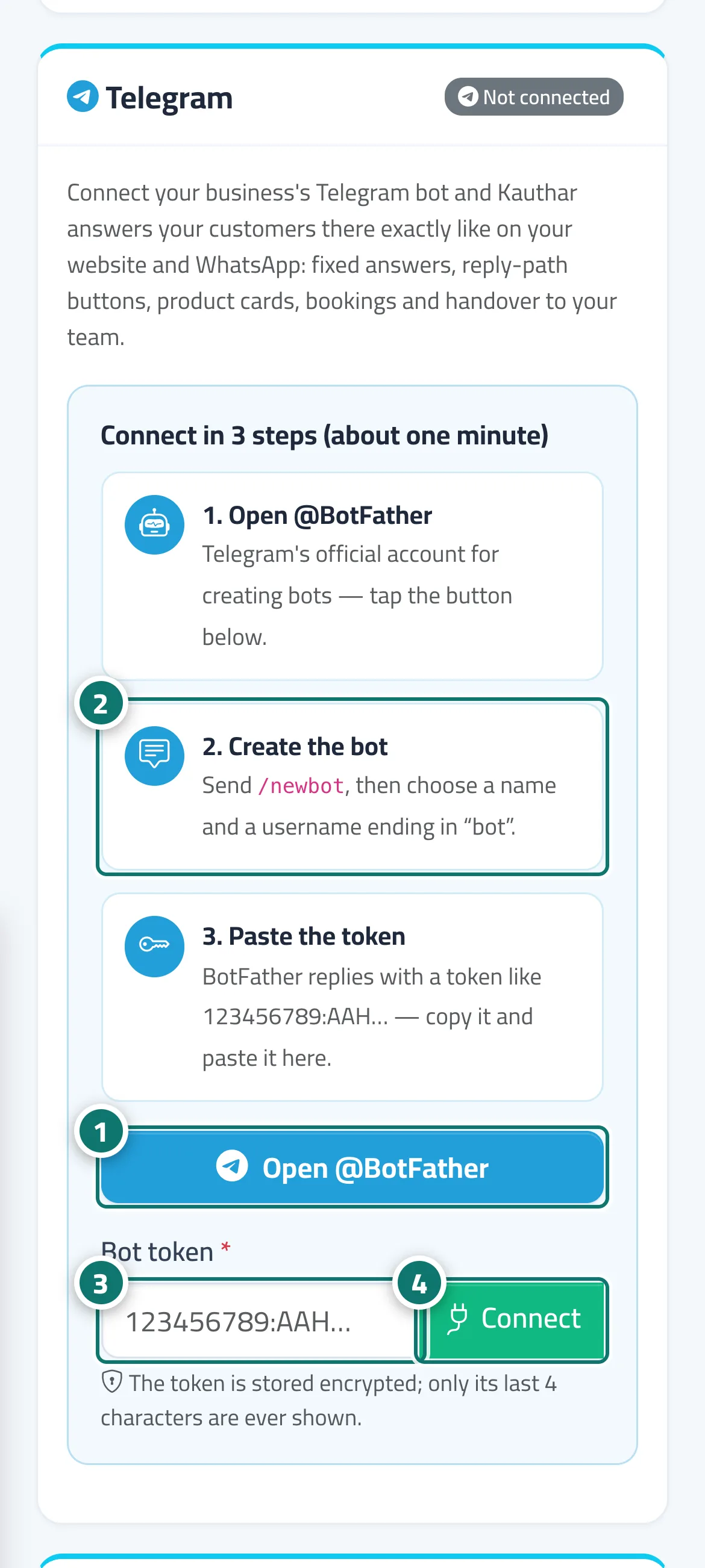
- In the “Telegram” card press “Open @BotFather” to open Telegram's official account for creating bots. Numéro 1 sur l’image
- Send /newbot to BotFather, then choose a name for the bot and a username ending in “bot”. Numéro 2 sur l’image
- Copy the token BotFather sends (numbers, a colon, then letters) and paste it into “Bot token”. Numéro 3 sur l’image
- Press “Connect”. A “Connected” message and the “Working” status appear — send the bot a message on Telegram to try it. Numéro 4 sur l’image
- To manage the bot later, use “Test connection”, “Pause replies” or “Disconnect” on the same card.
Étapes
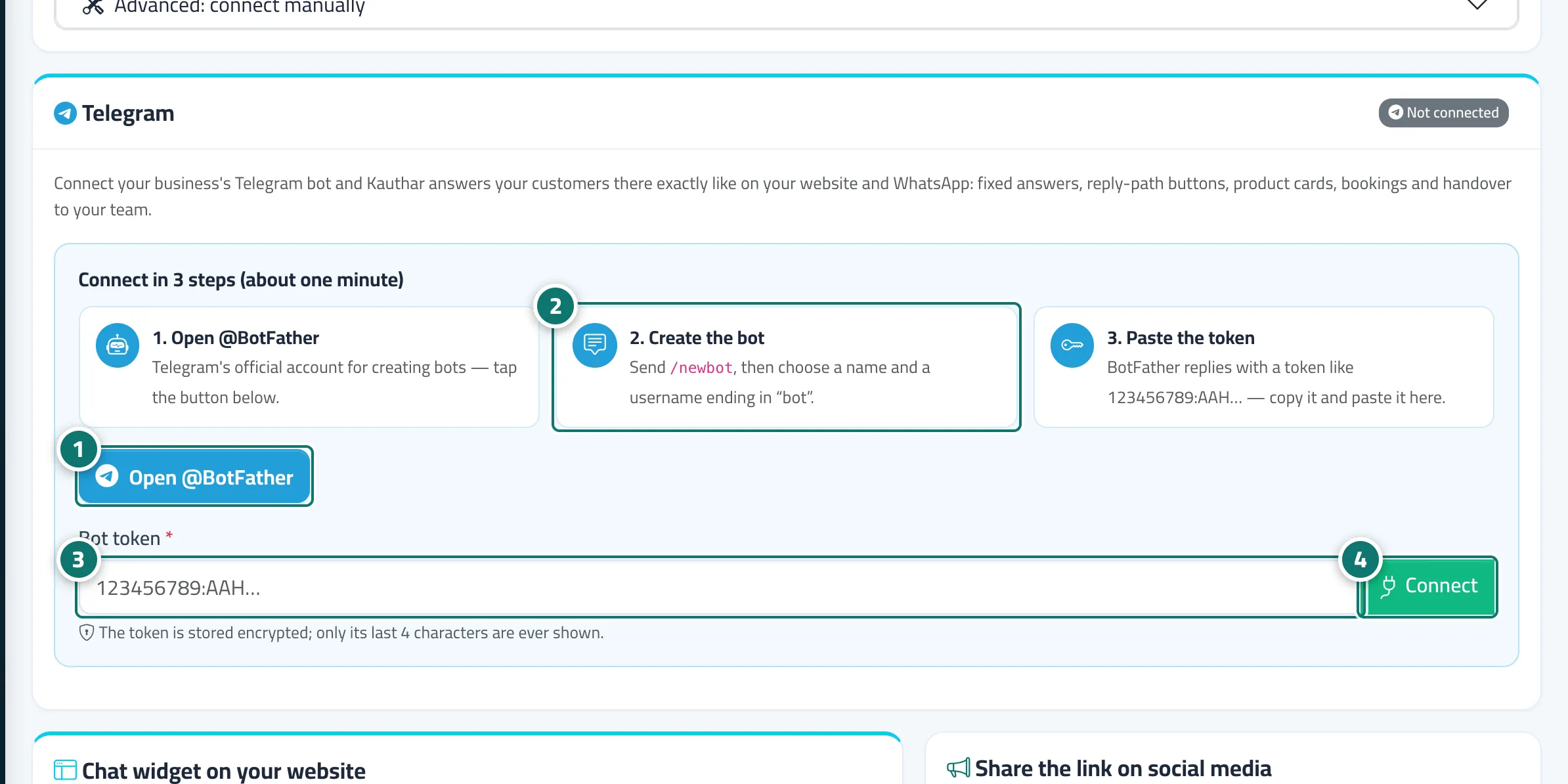
- In the “Telegram” card press “Open @BotFather” to open Telegram's official account for creating bots. Numéro 1 sur l’image
- Send /newbot to BotFather, then choose a name for the bot and a username ending in “bot”. Numéro 2 sur l’image
- Copy the token BotFather sends (numbers, a colon, then letters) and paste it into “Bot token”. Numéro 3 sur l’image
- Press “Connect”. A “Connected” message and the “Working” status appear — send the bot a message on Telegram to try it. Numéro 4 sur l’image
- To manage the bot later, use “Test connection”, “Pause replies” or “Disconnect” on the same card.