
Boutiques et intégrations · Connecting a store with an API key: EasyOrders, BigCommerce and Magento
How do I connect my EasyOrders store to Kauthar?
EasyOrders, BigCommerce and Magento stores connect with a key or access token you create in your store dashboard (read only), so Kauthar learns your products and follows orders.
Pour qui : Propriétaire et responsable
Où : Sidebar → Train your assistant → Connect your store → Choose your store platform
Étapes
- Open «Connect your store» and pick your platform in «Choose your store platform» (EasyOrders, BigCommerce or Magento).
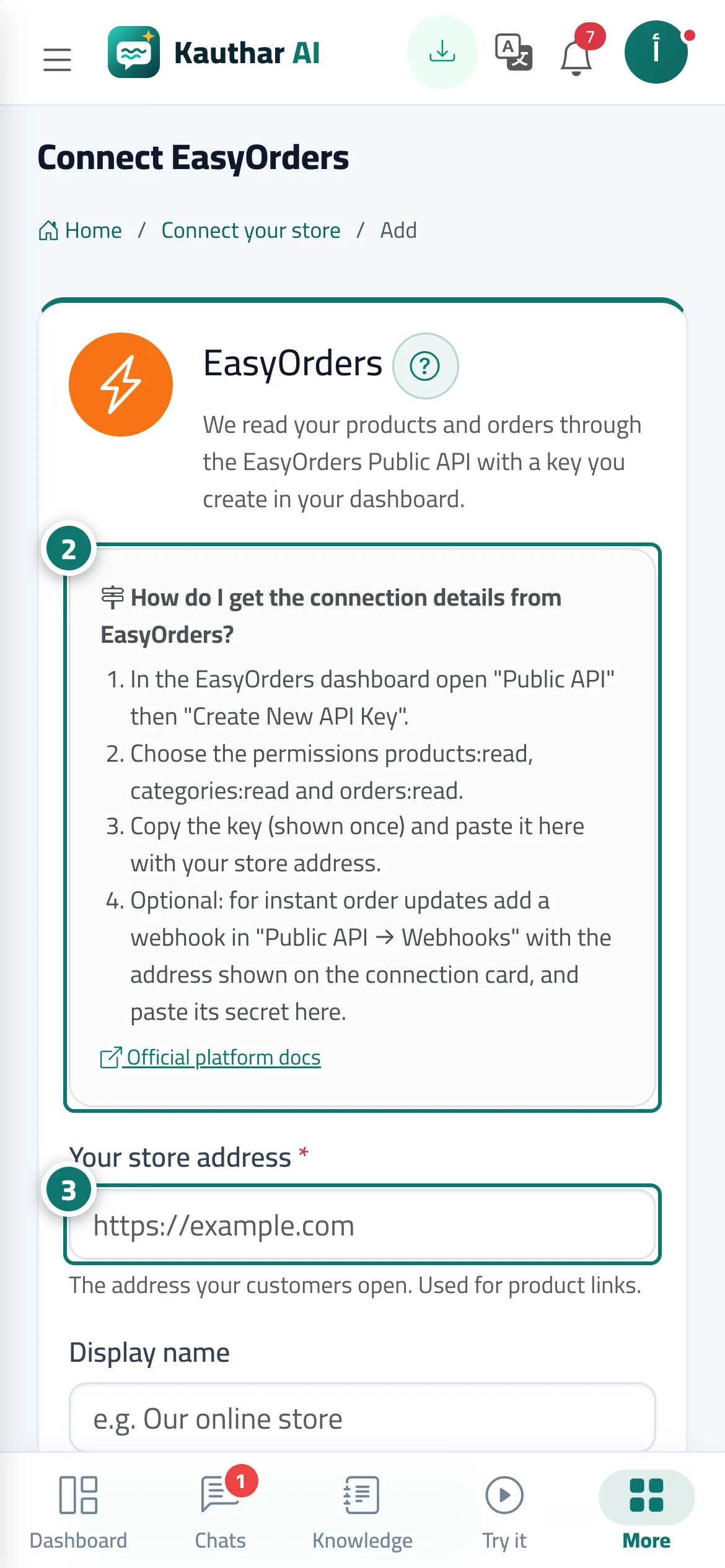
- Create the key in your store dashboard as the box shows: EasyOrders: «Public API» → «Create New API Key» with products:read, categories:read and orders:read. BigCommerce: Settings → Store-level API accounts → Create API account, read-only for Products, Orders and Information & settings. Magento: System → Extensions → Integrations → Add New Integration with Catalog and Sales, then «Activate», and turn on «Allow OAuth Access Tokens to be used as standalone Bearer tokens». Numéro 2 sur l’image
- Enter «Your store address» and paste the connection details (in BigCommerce the store hash is the part after /stores/ in the «API path»). Numéro 3 sur l’image
- Press «Connect and start syncing» and wait until the status is «Connected», then ask the assistant about a product by name.
- Optional for EasyOrders: add a webhook in «Public API → Webhooks» with the address shown on the connection card, and paste its secret in «Webhook secret» so orders arrive instantly.
Étapes
- Open «Connect your store» and pick your platform in «Choose your store platform» (EasyOrders, BigCommerce or Magento).
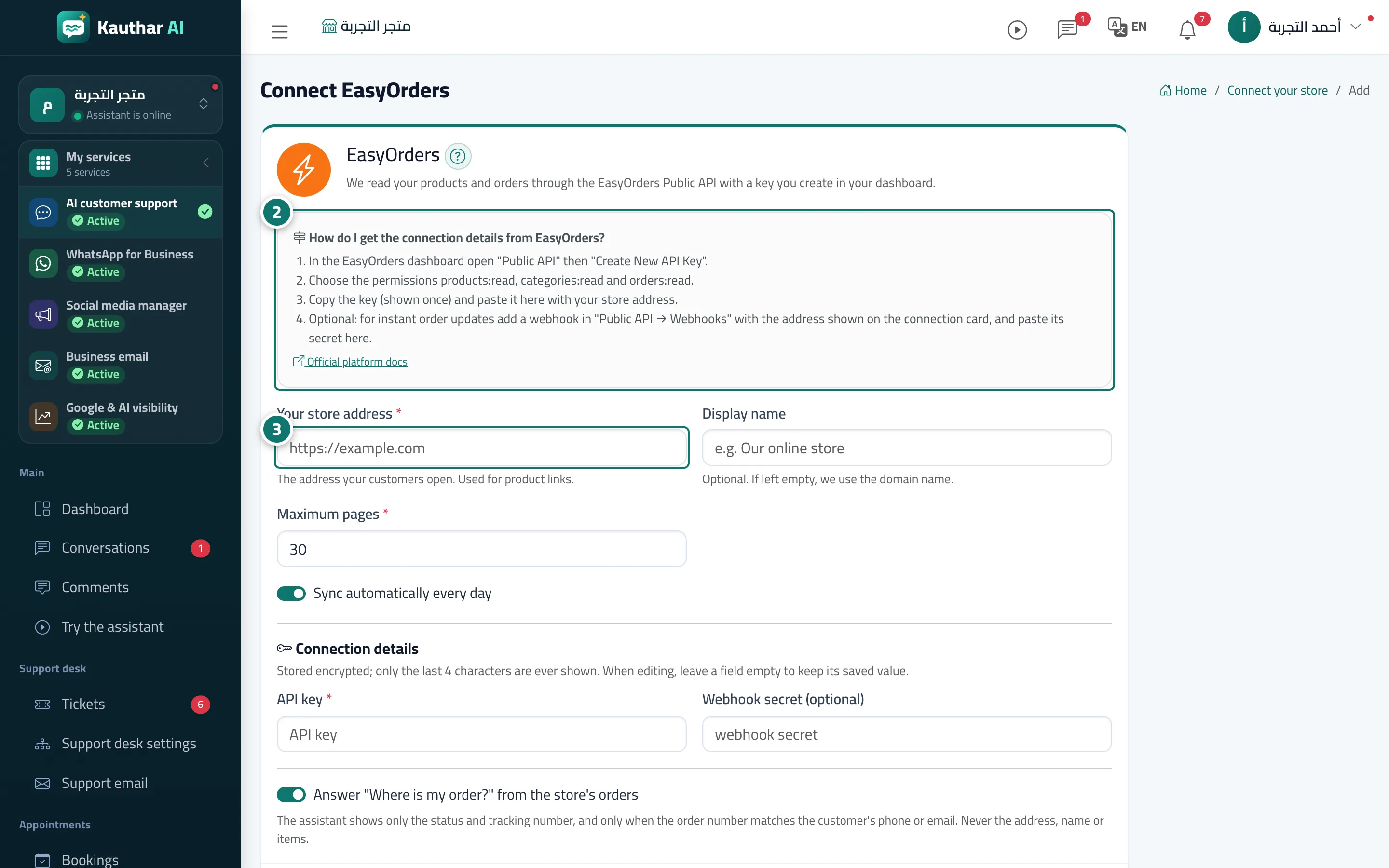
- Create the key in your store dashboard as the box shows: EasyOrders: «Public API» → «Create New API Key» with products:read, categories:read and orders:read. BigCommerce: Settings → Store-level API accounts → Create API account, read-only for Products, Orders and Information & settings. Magento: System → Extensions → Integrations → Add New Integration with Catalog and Sales, then «Activate», and turn on «Allow OAuth Access Tokens to be used as standalone Bearer tokens». Numéro 2 sur l’image
- Enter «Your store address» and paste the connection details (in BigCommerce the store hash is the part after /stores/ in the «API path»). Numéro 3 sur l’image
- Press «Connect and start syncing» and wait until the status is «Connected», then ask the assistant about a product by name.
- Optional for EasyOrders: add a webhook in «Public API → Webhooks» with the address shown on the connection card, and paste its secret in «Webhook secret» so orders arrive instantly.