
Réseaux sociaux · Design editor: text, price and logo on the image
How do I edit the words written on the post image?
Edit the post design yourself for every size: move and resize the text, add a price, a button, your logo or a shape, pick the font, colour and background, then save to see the final image exactly as it will be published.
Pour qui : Propriétaire et responsable · Membres de l'équipe
Où : Sidebar → Social media publishing → Post studio → tap a post → “Design”
Étapes
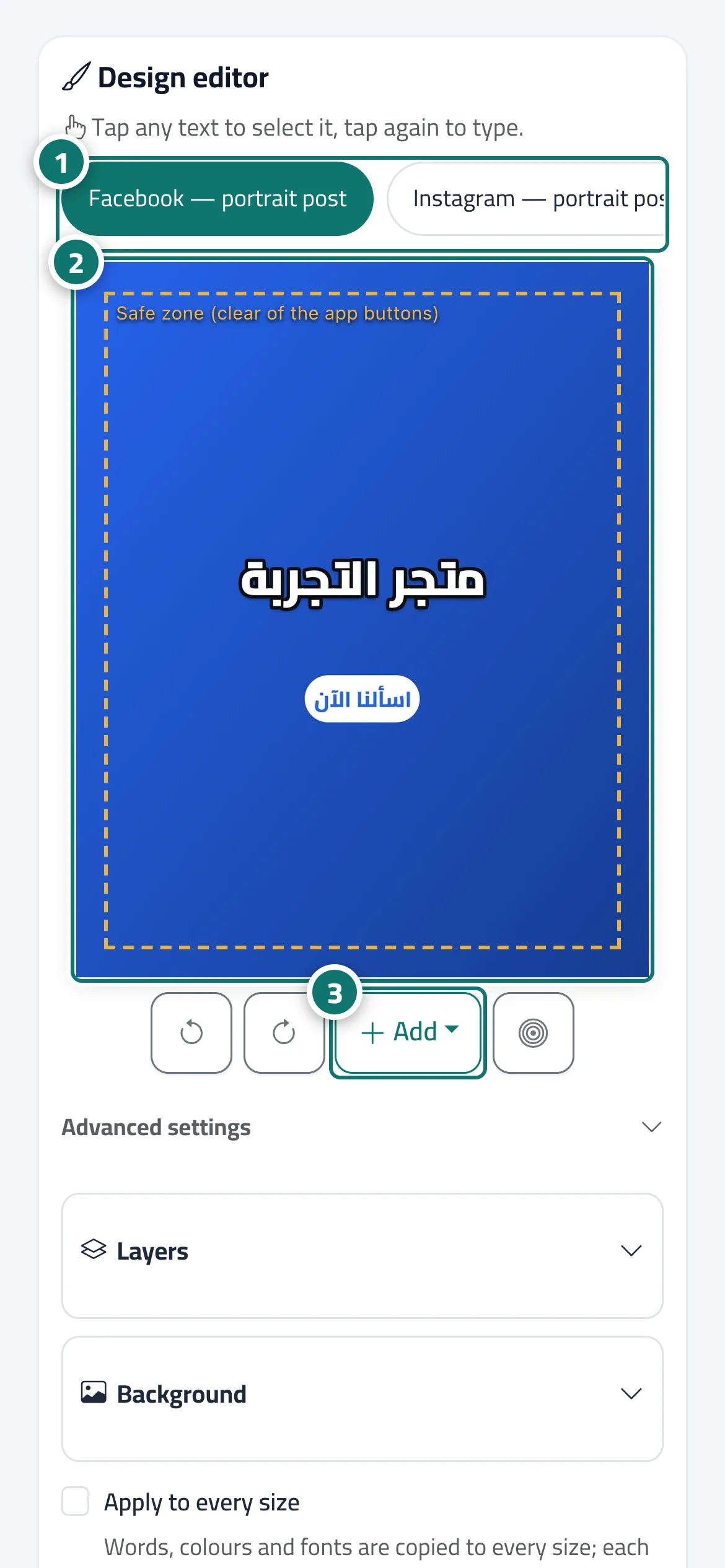
- Choose the size you want to edit from the buttons at the top of the editor. Numéro 1 sur l’image
- Tap any text on the image to select it, tap again to type, and drag it to move it. Numéro 2 sur l’image
- Use “Add” to add a text, a price, a button, your logo or a shape. Numéro 3 sur l’image
- Change the font, colour and background under “Layers”, “Background” and the text properties.
- Tick “Apply to every size” to copy the words, colours and fonts to the other sizes.
- Press “Save design” and check the “Final image as it will be published”.
- For a completely different design, pick another layout or a new photo under “Template and photo” and press “Redesign”.
Étapes
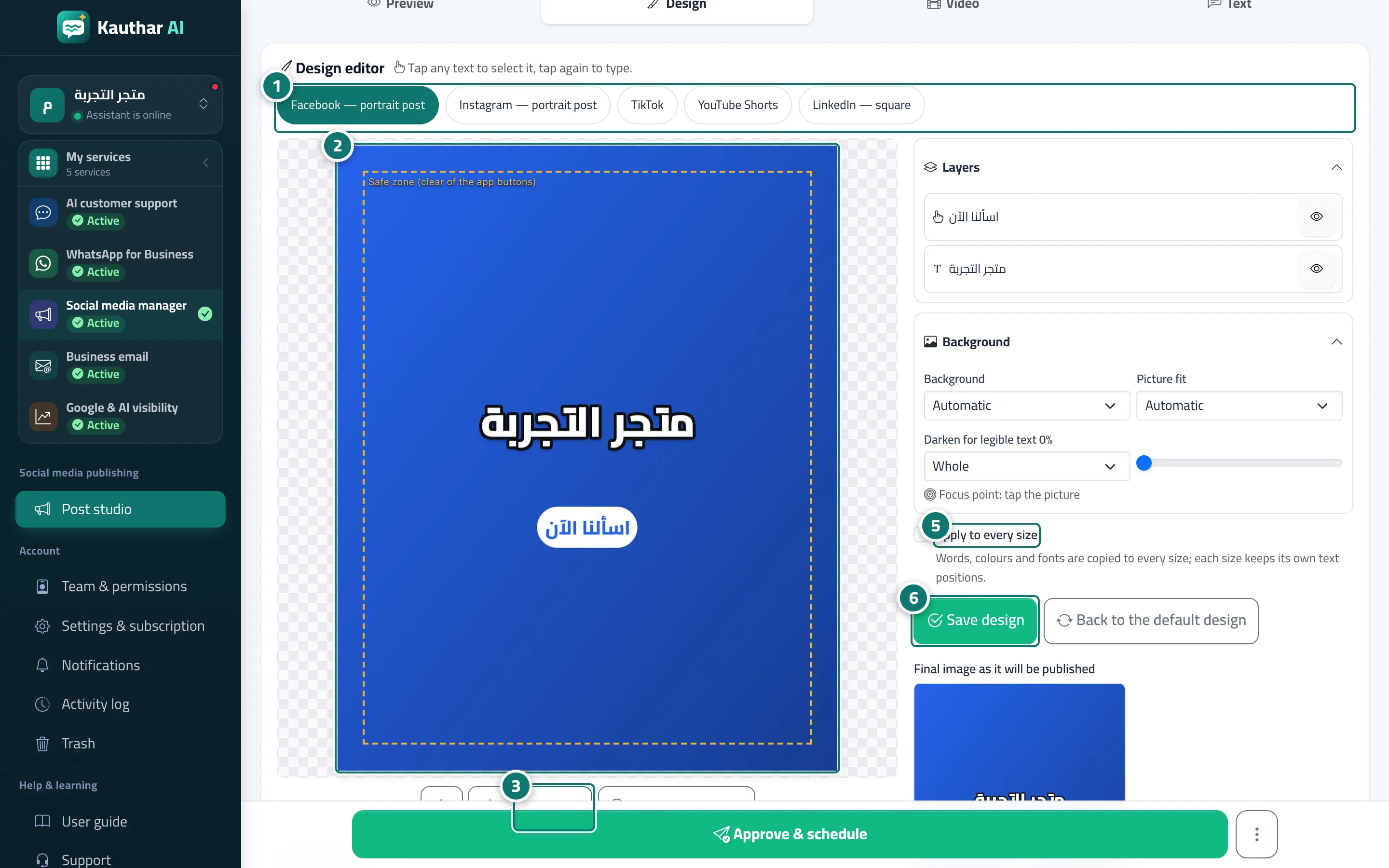
- Choose the size you want to edit from the buttons at the top of the editor. Numéro 1 sur l’image
- Tap any text on the image to select it, tap again to type, and drag it to move it. Numéro 2 sur l’image
- Use “Add” to add a text, a price, a button, your logo or a shape. Numéro 3 sur l’image
- Change the font, colour and background under “Layers”, “Background” and the text properties.
- Tick “Apply to every size” to copy the words, colours and fonts to the other sizes. Numéro 5 sur l’image
- Press “Save design” and check the “Final image as it will be published”. Numéro 6 sur l’image
- For a completely different design, pick another layout or a new photo under “Template and photo” and press “Redesign”.