
Billing & plans · Managing and renewing your AI customer support subscription
Where do I see my subscription's end date and my usage?
The «Subscription» page for the «AI customer support» service: your plan, its end date and your usage, plus renewing, changing plan and paying online in minutes.
Who this is for: Owner & manager · Team members
Where: Sidebar → Account → Settings & subscription → «Subscription» tab → «Plans & subscription»
Steps
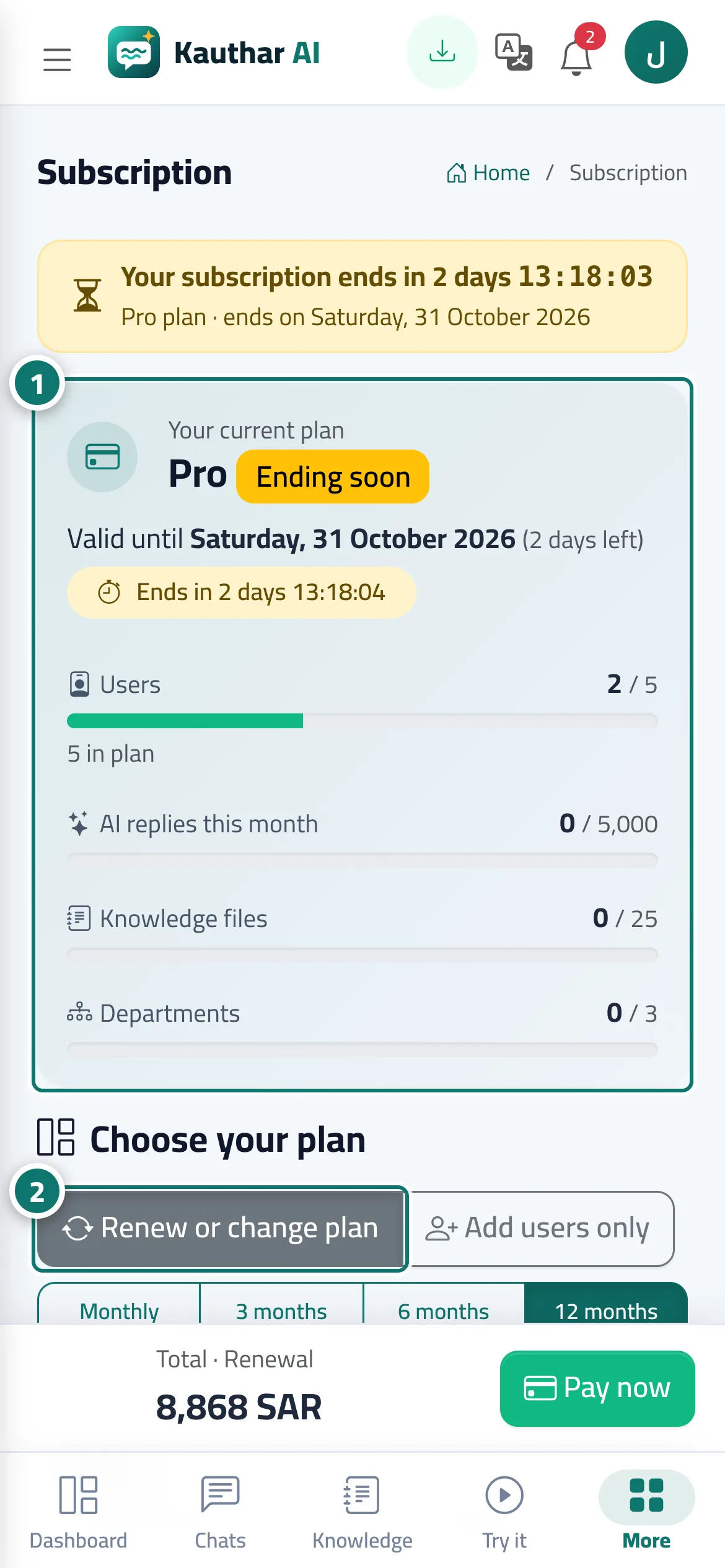
- Open the «Subscription» page and review the «Your current plan» card and the usage meters. Number 1 on the picture
- To renew the same plan, keep «Renew or change plan» selected and choose «Monthly», «3 months», «6 months» or «12 months»; your current plan carries the «Your current plan» badge. Number 2 on the picture
- To change plan, press «Choose plan» on another plan.
- Set the number of «Extra users» if you need them, and review the «Order summary»: the type of operation (renewal, plan upgrade, new subscription), the items, the «Total» and the "Subscription active until" date.
- Press «Pay now». After paying you return to the page with "Payment successful — thank you." and a «Receipt» button, and you get a «Subscription renewed» or «Subscription activated» alert.
Steps
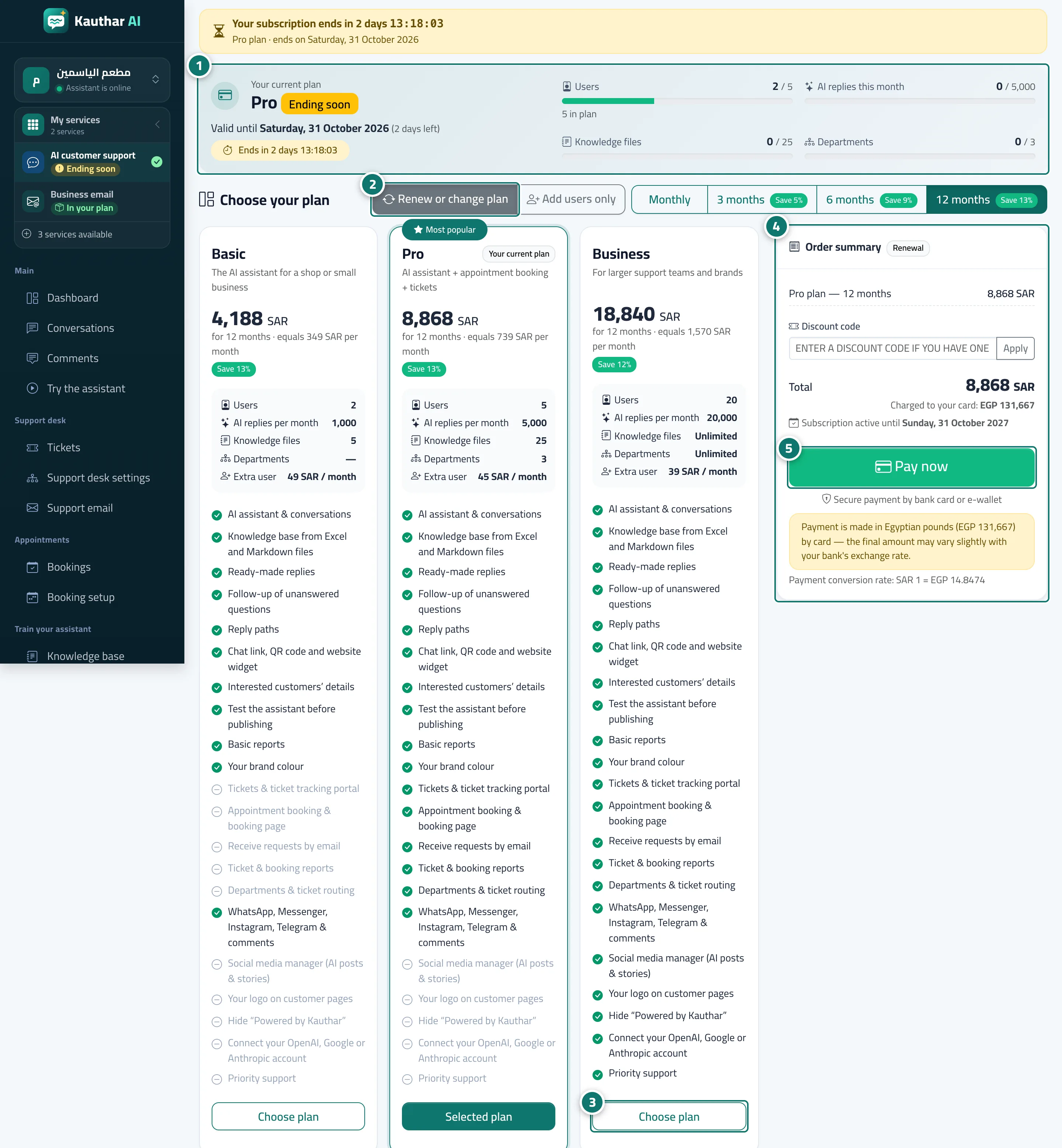
- Open the «Subscription» page and review the «Your current plan» card and the usage meters. Number 1 on the picture
- To renew the same plan, keep «Renew or change plan» selected and choose «Monthly», «3 months», «6 months» or «12 months»; your current plan carries the «Your current plan» badge. Number 2 on the picture
- To change plan, press «Choose plan» on another plan. Number 3 on the picture
- Set the number of «Extra users» if you need them, and review the «Order summary»: the type of operation (renewal, plan upgrade, new subscription), the items, the «Total» and the "Subscription active until" date. Number 4 on the picture
- Press «Pay now». After paying you return to the page with "Payment successful — thank you." and a «Receipt» button, and you get a «Subscription renewed» or «Subscription activated» alert. Number 5 on the picture