
Social media · Publishing result per platform and retrying
How do I know whether a post went out on every platform?
After publishing you can see where the post went out, where it failed and why — and retry only the platforms that failed, without repeating what was published.
Who this is for: Owner & manager · Team members
Where: Sidebar → Social media publishing → Post studio → “Calendar” → the failed post
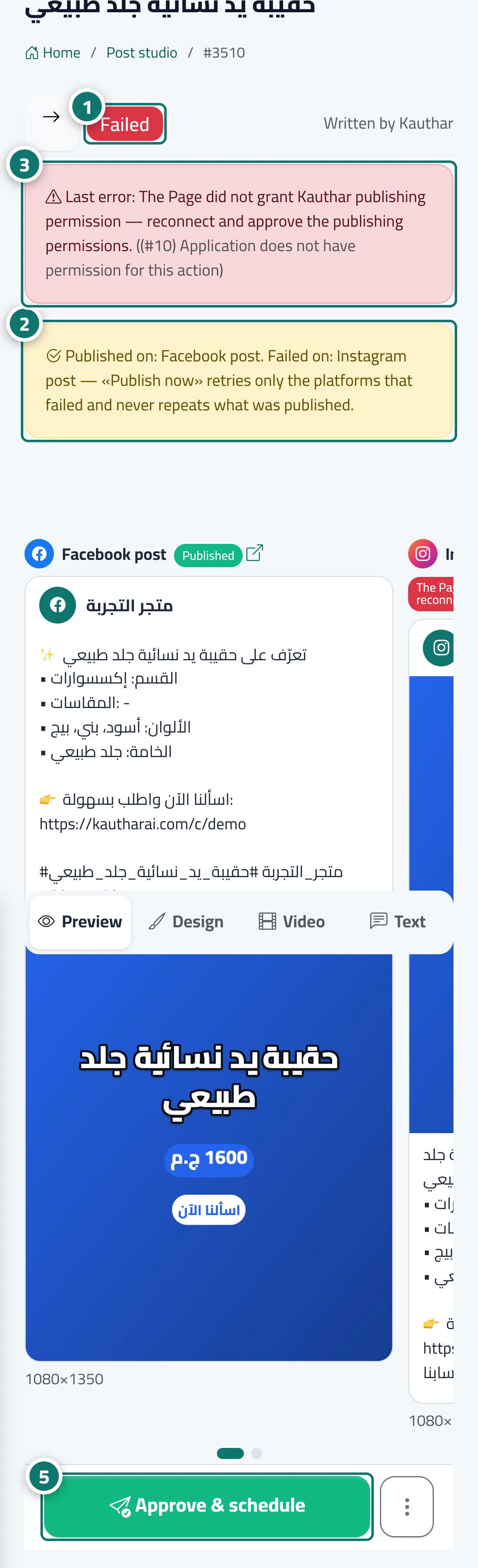
Steps
- Check the post’s status at the top of the page. Number 1 on the picture
- Read the partial-success message to see which platforms it went out on and which failed. Number 2 on the picture
- Read the “Last error” and fix its cause (usually by reconnecting the account in the “Accounts” tab). Number 3 on the picture
- Check each platform’s result next to its name in “Preview”.
- Press “Approve & schedule”, then “Approve & publish now” to retry only the platforms that failed. Number 5 on the picture
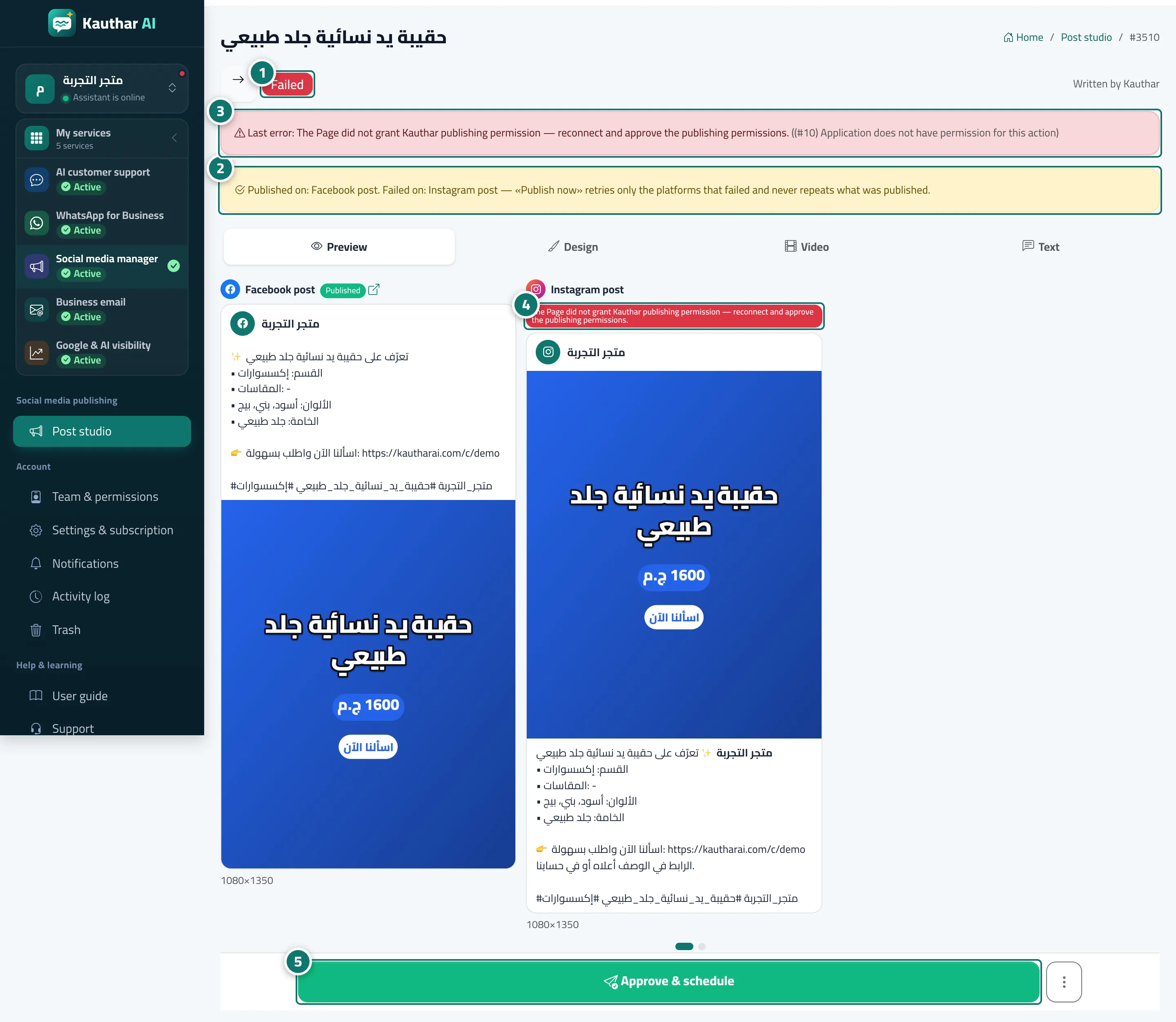
Steps
- Check the post’s status at the top of the page. Number 1 on the picture
- Read the partial-success message to see which platforms it went out on and which failed. Number 2 on the picture
- Read the “Last error” and fix its cause (usually by reconnecting the account in the “Accounts” tab). Number 3 on the picture
- Check each platform’s result next to its name in “Preview”. Number 4 on the picture
- Press “Approve & schedule”, then “Approve & publish now” to retry only the platforms that failed. Number 5 on the picture