
Team & security · Notifications & my devices
How do I choose which alerts reach my phone?
Choose for yourself what reaches your phone and what reaches your email, review and test the devices registered to you, and set quiet hours.
Who this is for: Owner & manager · Team members
Where: Your name menu → «Notifications & my devices» · or the bell in the top bar → «Notifications & my devices»
Steps
- Open «Notifications & my devices» from your name menu or the bell menu.
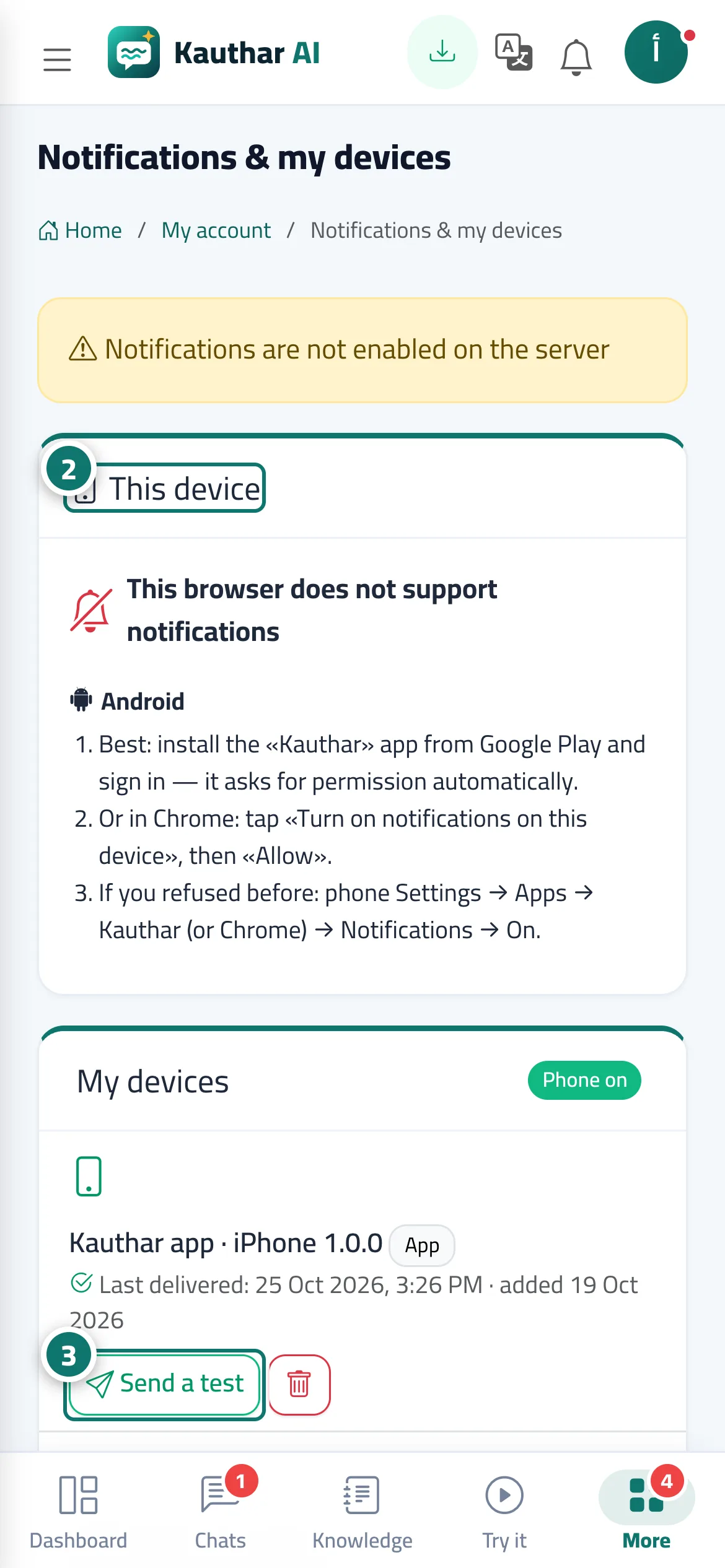
- In «This device», press «Turn on notifications on this device», then «Allow», and follow the steps shown for your type of device. Number 2 on the picture
- In «My devices», press «Send a test» next to your phone to check that notifications arrive, and delete any device you no longer use. Number 3 on the picture
- In «What I receive», switch each event on or off for «On my devices» and «Backup email».
- Turn on «Quiet hours», set «From» and «To», then save.
Steps
- Open «Notifications & my devices» from your name menu or the bell menu.
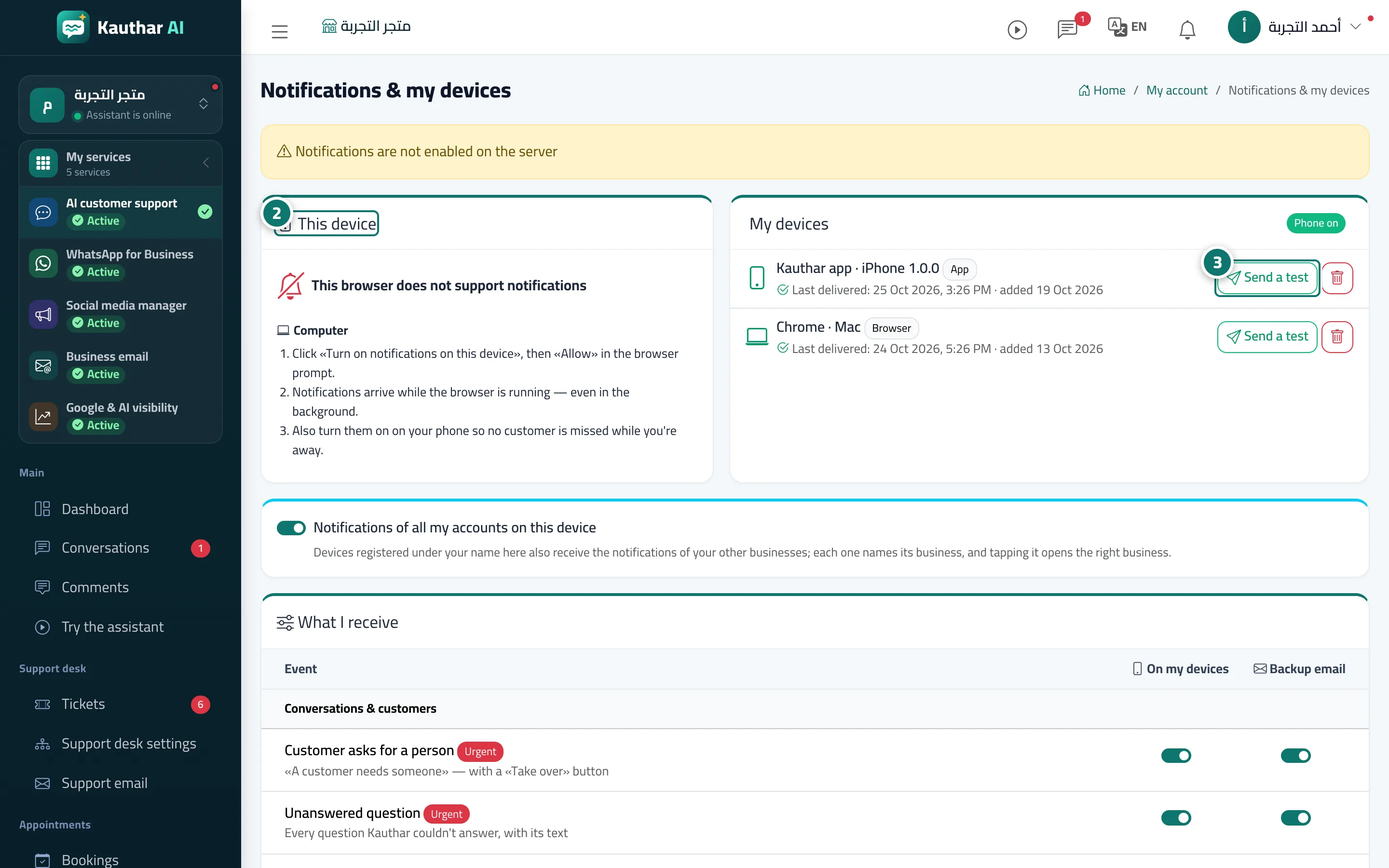
- In «This device», press «Turn on notifications on this device», then «Allow», and follow the steps shown for your type of device. Number 2 on the picture
- In «My devices», press «Send a test» next to your phone to check that notifications arrive, and delete any device you no longer use. Number 3 on the picture
- In «What I receive», switch each event on or off for «On my devices» and «Backup email».
- Turn on «Quiet hours», set «From» and «To», then save.