
WhatsApp Business & OTP · Contacts, lists and opt-out
How do I add a customer to my campaign contacts?
Your campaign audience: add contacts with their consent, organise them with tags and lists, track who opted in and out, and Kauthar unsubscribes anyone who asks automatically.
Who this is for: Owner & manager · Team members
Where: Sidebar → WhatsApp Business → Marketing messages → Contacts

Steps
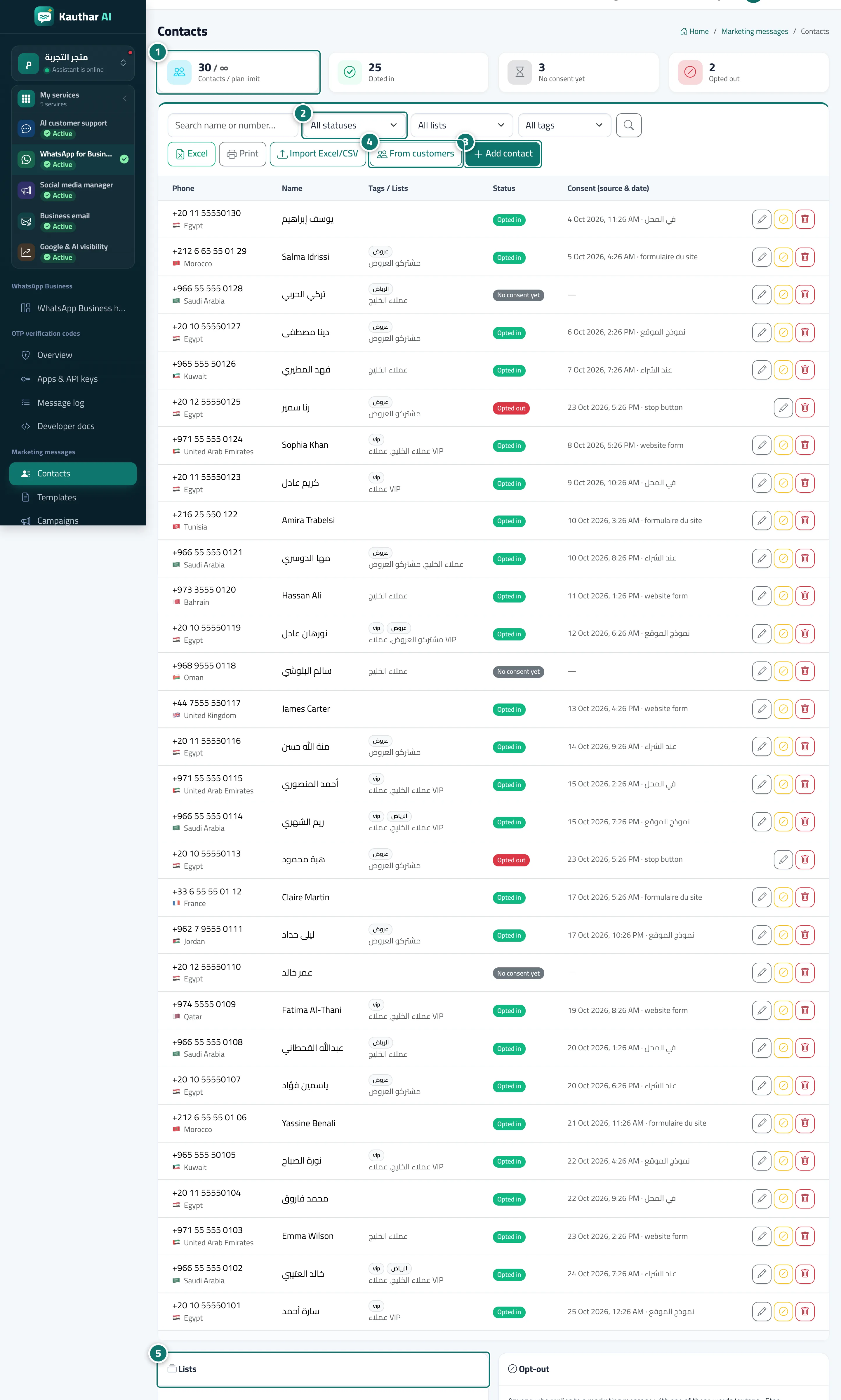
- Review the counts at the top: total against your plan limit, opted in, without consent, and opted out. Number 1 on the picture
- Filter the table by status, list or tag, or search by name or number. Number 2 on the picture
- Click "Add contact", enter the number, name, tags and lists, set the consent and its source, then "Save". Number 3 on the picture
- Click "From customer profiles" to add chat customers who have phone numbers. Number 4 on the picture
- Create your lists from the "Lists" card by entering a name, then "Add". Number 5 on the picture
Steps
- Review the counts at the top: total against your plan limit, opted in, without consent, and opted out. Number 1 on the picture
- Filter the table by status, list or tag, or search by name or number. Number 2 on the picture
- Click "Add contact", enter the number, name, tags and lists, set the consent and its source, then "Save". Number 3 on the picture
- Click "From customer profiles" to add chat customers who have phone numbers. Number 4 on the picture
- Create your lists from the "Lists" card by entering a name, then "Add". Number 5 on the picture