
WhatsApp Business & OTP · Create a WhatsApp marketing campaign
How do I send an offer to all my customers on WhatsApp?
A campaign in four steps — number and template, audience, template variables and send time — with a live estimated cost by country before you confirm.
Who this is for: Owner & manager · Team members
Where: Sidebar → WhatsApp Business → Marketing messages → Campaigns → "New campaign"
Steps
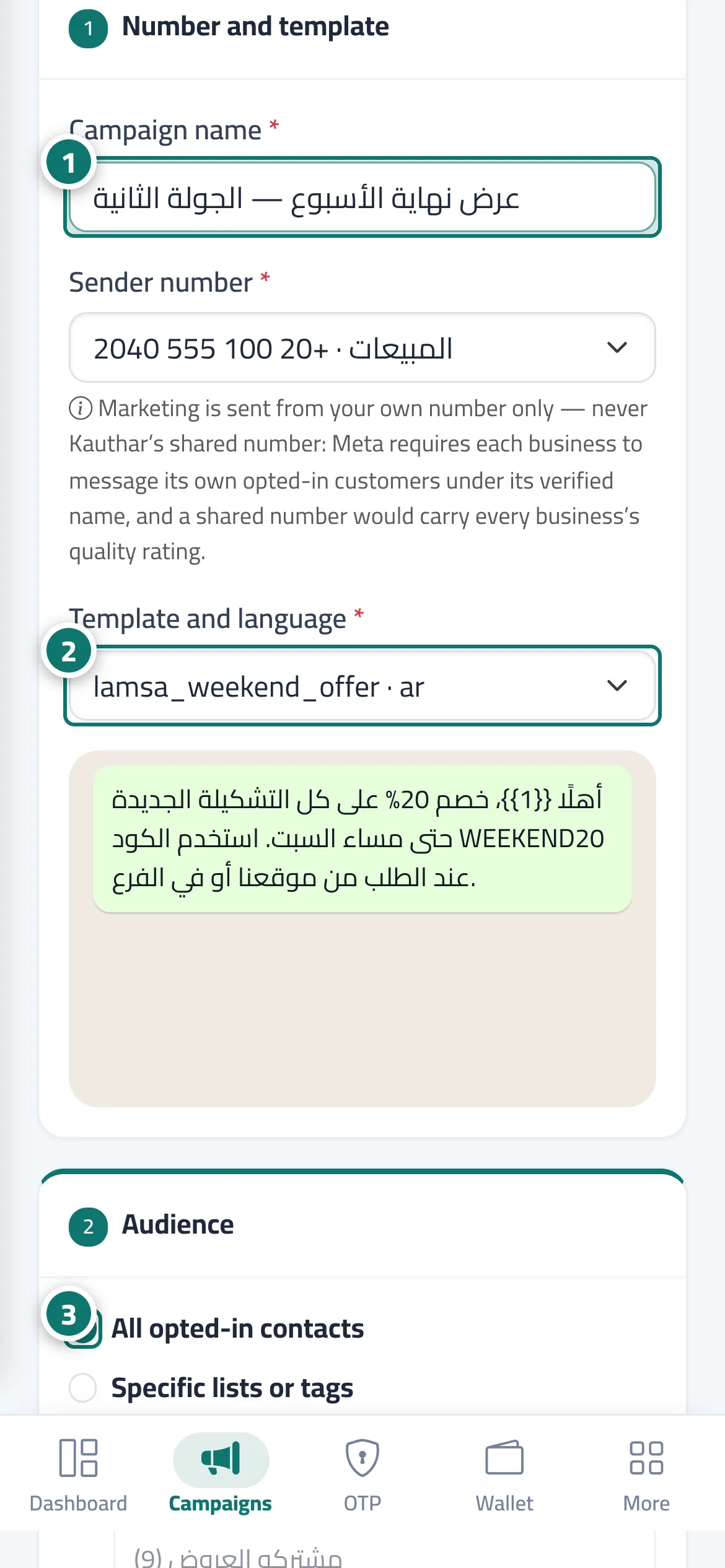
- Enter the "Campaign name" and choose the sending number. Number 1 on the picture
- Choose the approved template and its language. Number 2 on the picture
- Choose the audience: all opted-in contacts or specific lists and tags, and limit it to certain countries if you like. Number 3 on the picture
- Set the source of each variable (such as the customer's name) and a fallback value in case the field is empty.
- Choose now or "At a set time".
- Review the "Estimated cost", then click "Review the cost before sending" and confirm.
Steps
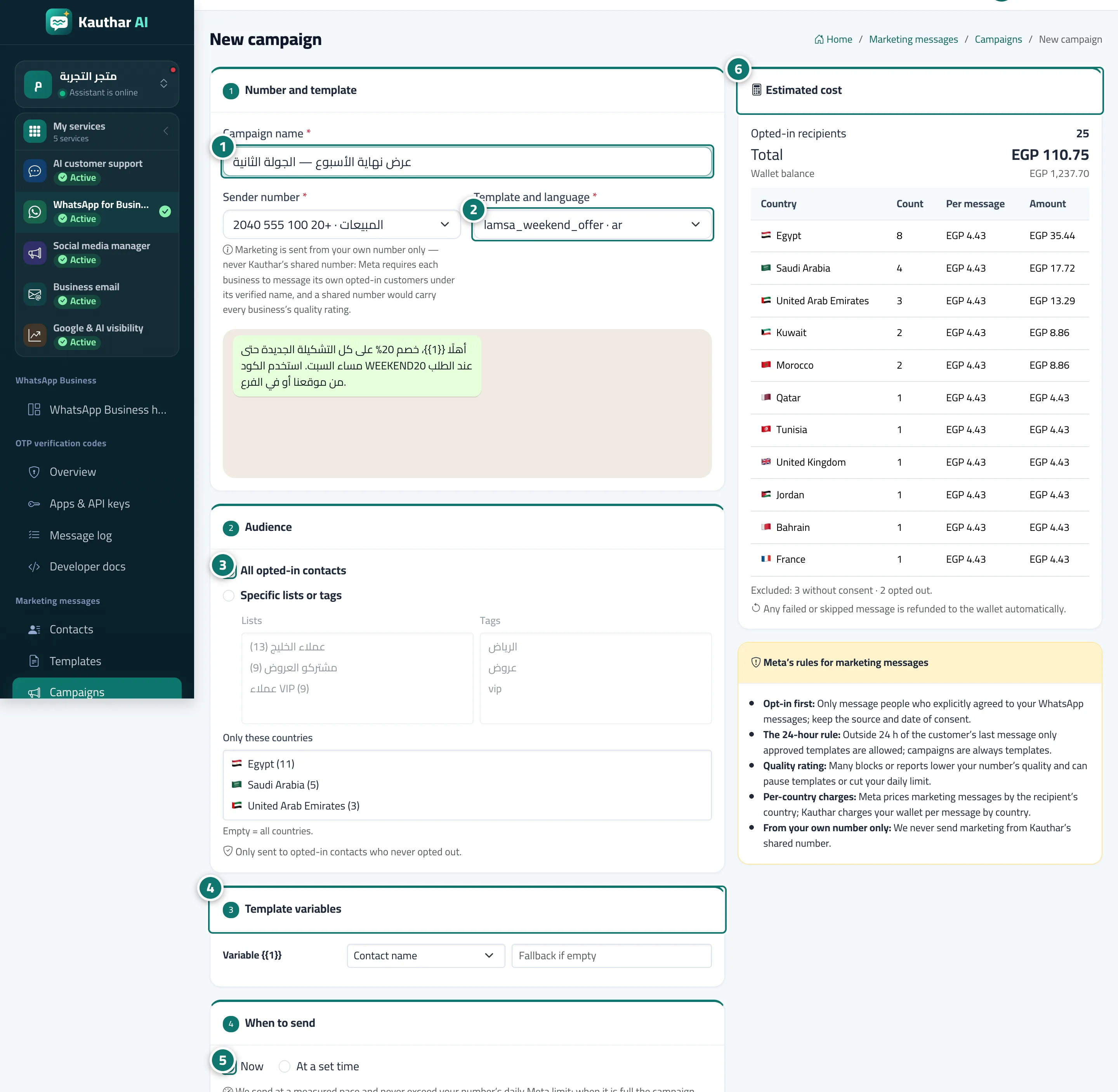
- Enter the "Campaign name" and choose the sending number. Number 1 on the picture
- Choose the approved template and its language. Number 2 on the picture
- Choose the audience: all opted-in contacts or specific lists and tags, and limit it to certain countries if you like. Number 3 on the picture
- Set the source of each variable (such as the customer's name) and a fallback value in case the field is empty. Number 4 on the picture
- Choose now or "At a set time". Number 5 on the picture
- Review the "Estimated cost", then click "Review the cost before sending" and confirm. Number 6 on the picture