
WhatsApp Business & OTP · Marketing message templates
How do I create a WhatsApp marketing message template?
A WhatsApp marketing message must be a template approved by Meta: create templates with a header, body, variables and buttons, follow their status, and use them straight in a campaign.
Who this is for: Owner & manager · Team members
Where: Sidebar → WhatsApp Business → Marketing messages → Templates
Steps
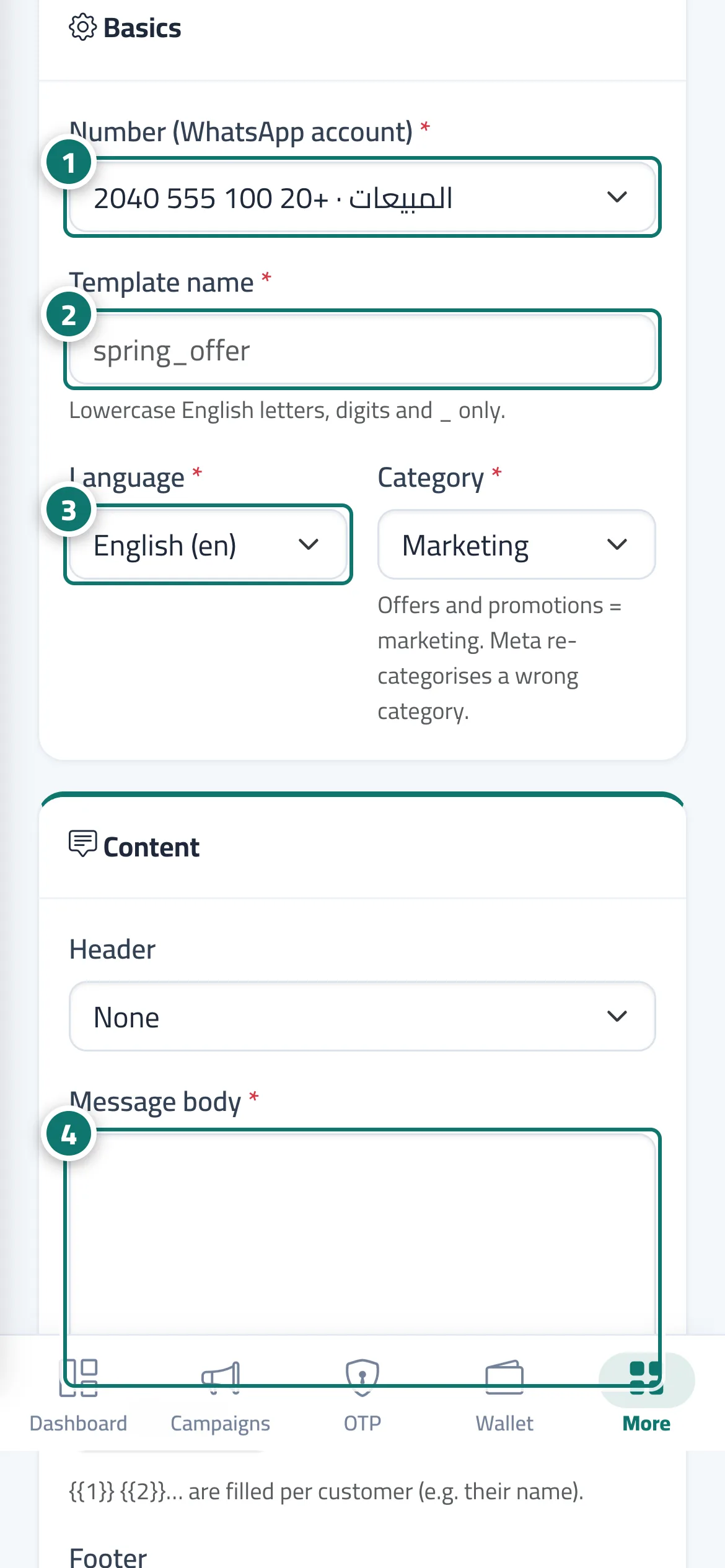
- Choose the number the template is created on. Number 1 on the picture
- Enter the "Template name" in lowercase English letters. Number 2 on the picture
- Choose the language and category. Number 3 on the picture
- Write the message body, add variables with their sample values, and the footer. Number 4 on the picture
- Add the buttons (we recommend keeping "Stop messages"), then click "Submit to Meta for review".
Steps
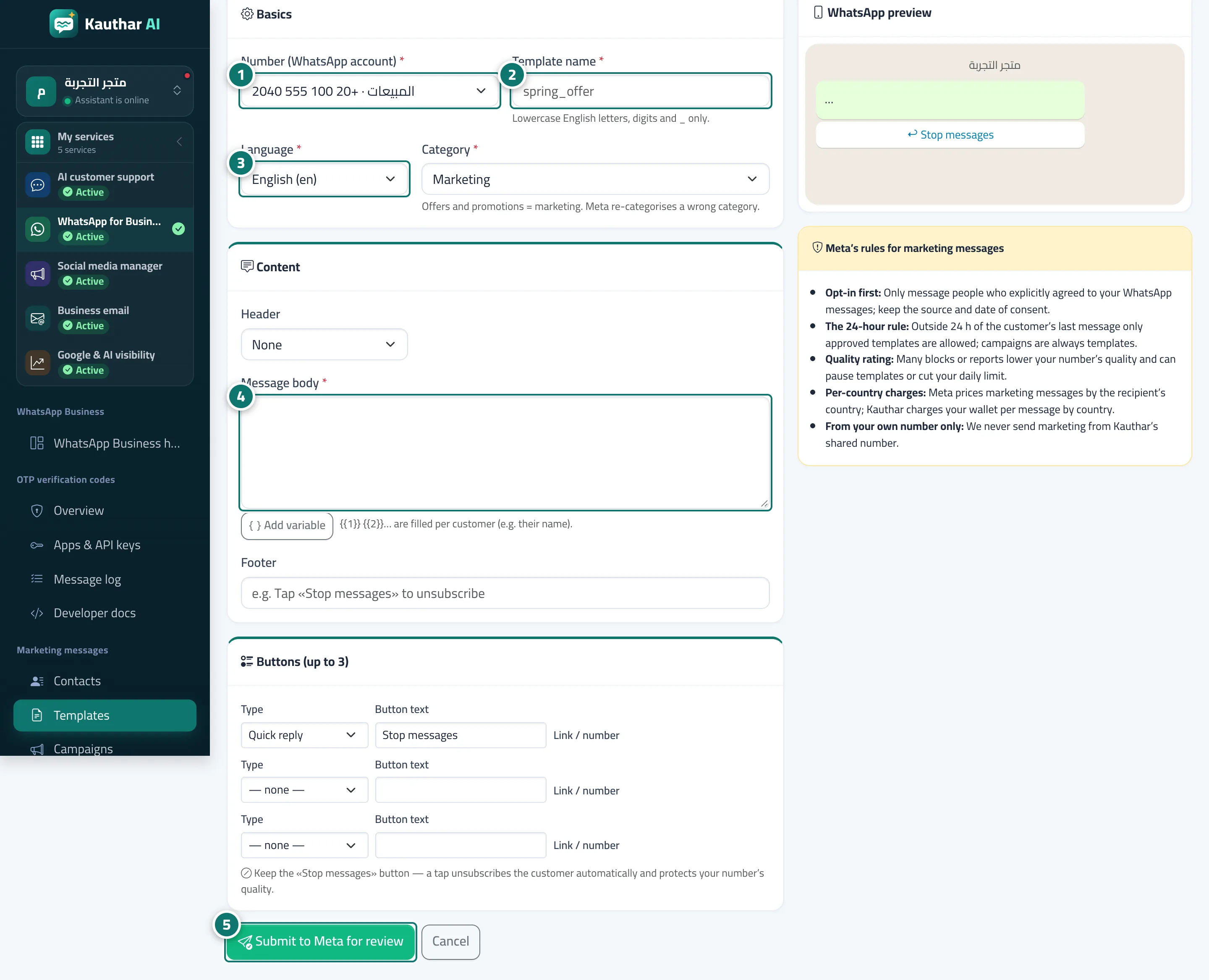
- Choose the number the template is created on. Number 1 on the picture
- Enter the "Template name" in lowercase English letters. Number 2 on the picture
- Choose the language and category. Number 3 on the picture
- Write the message body, add variables with their sample values, and the footer. Number 4 on the picture
- Add the buttons (we recommend keeping "Stop messages"), then click "Submit to Meta for review". Number 5 on the picture