
Assistant et connaissances · Reply-path icon library
How do I choose an icon for a reply-path button?
Pick a professional icon for every reply-path button from a library of 47 icons grouped by type of business.
Pour qui : Propriétaire et responsable
Où : Sidebar → Train your assistant → Reply paths → «Add button» or «Edit» on a button
Étapes
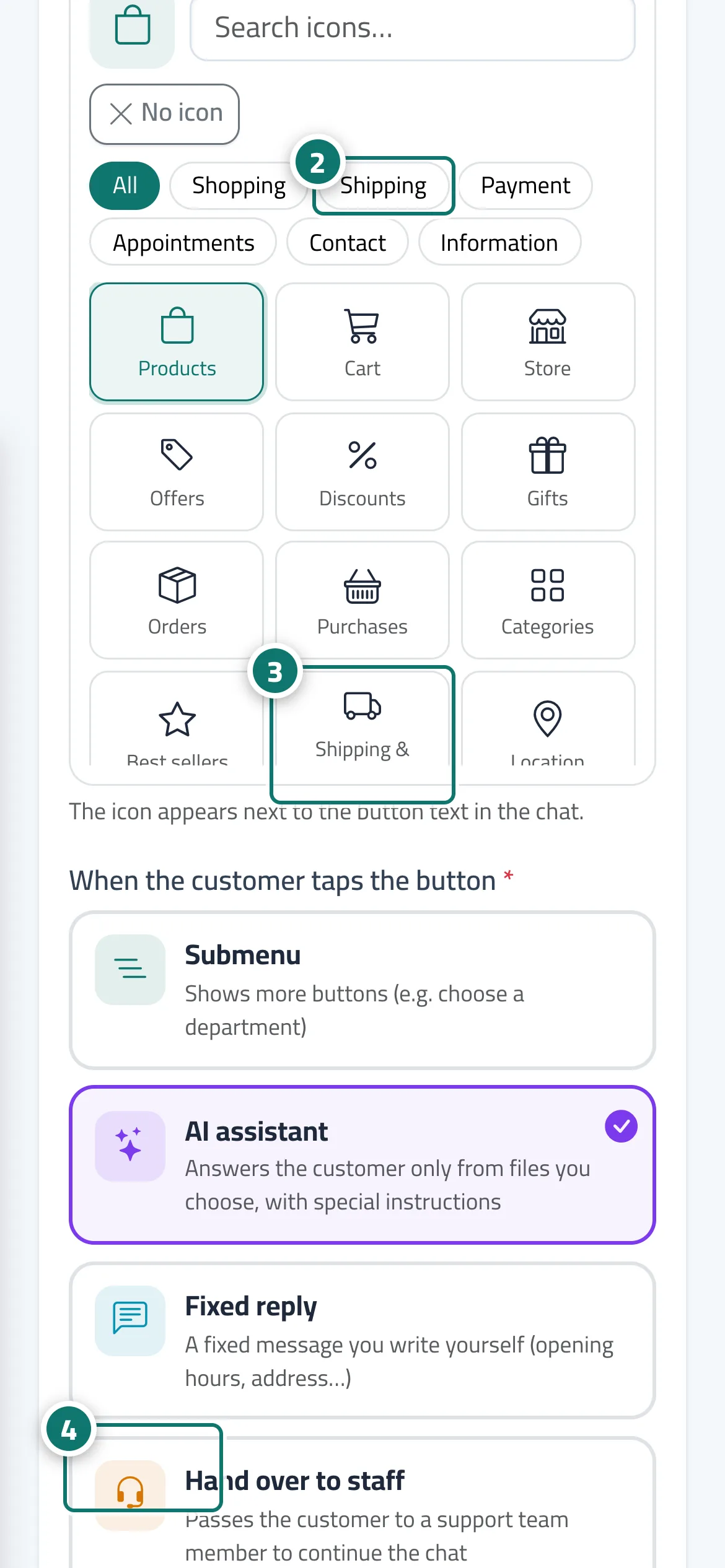
- Open «Reply paths» and click «Add a button to the main menu», or «Edit» on an existing button.
- Under «Icon (optional)», choose a category (such as «Shipping» or «Payment») or type in «Search icons…». Numéro 2 sur l’image
- Click the right icon and it appears under «Selected icon», or click «No icon» to remove it. Numéro 3 sur l’image
- Click «Save». Numéro 4 sur l’image
Étapes
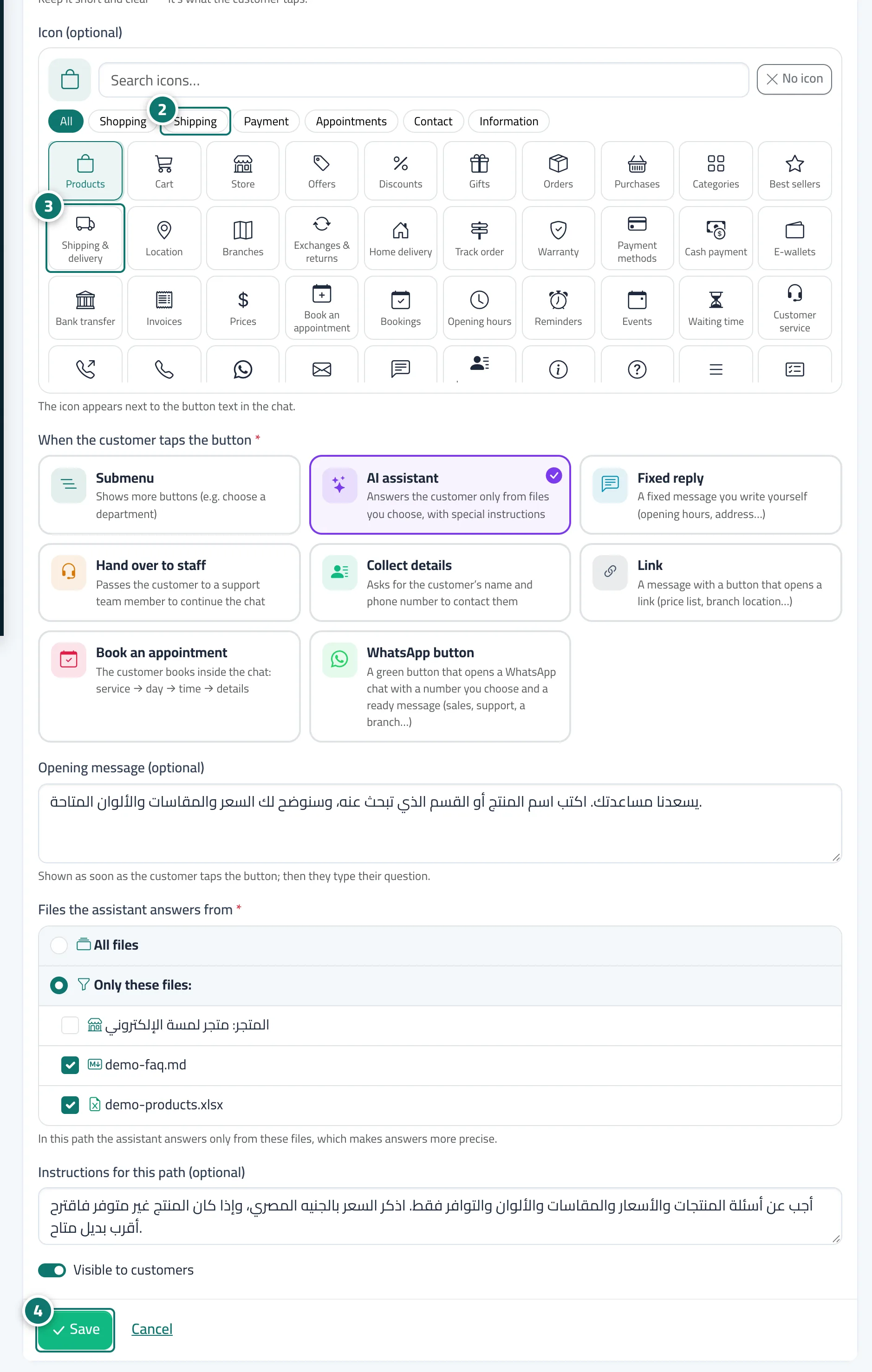
- Open «Reply paths» and click «Add a button to the main menu», or «Edit» on an existing button.
- Under «Icon (optional)», choose a category (such as «Shipping» or «Payment») or type in «Search icons…». Numéro 2 sur l’image
- Click the right icon and it appears under «Selected icon», or click «No icon» to remove it. Numéro 3 sur l’image
- Click «Save». Numéro 4 sur l’image