
Assistant et connaissances · Reply paths with buttons
How do I add ready-made buttons to my customers' chat?
Ready-made buttons in the chat, such as «Prices» and «Shipping», that take your customer to their answer in one tap with an instant reply.
Pour qui : Propriétaire et responsable
Où : Sidebar → Train your assistant → Reply paths
Étapes
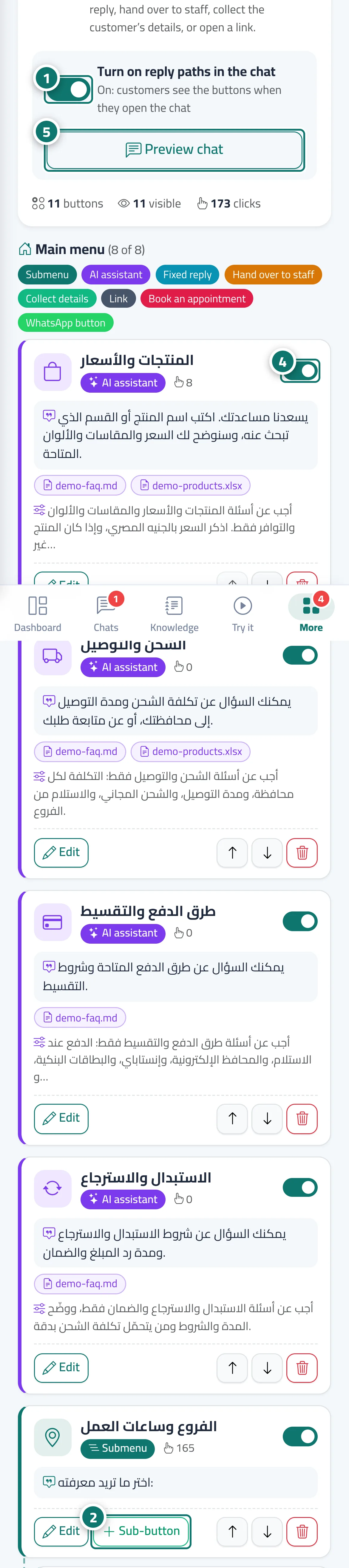
- Open «Reply paths» and make sure «Turn on reply paths in the chat» is on. If the list is empty you can start with «Use a template» (it adds: products and prices · shipping and delivery · payment methods · exchanges and returns · talk to a team member). Numéro 1 sur l’image
- Click «Add a button to the main menu», or «Sub-button» under any button of type «Submenu». Numéro 2 sur l’image
- Enter the «Button text», pick an «Icon (optional)» from the library, choose its type under «When the customer taps the button», write the «Message shown to the customer», then click «Save».
- Reorder buttons with «Move up» and «Move down», and show or hide each button with the «Visible to customers» switch. Numéro 4 sur l’image
- Click «Preview chat» to see the buttons exactly as your customers see them. Numéro 5 sur l’image
Étapes
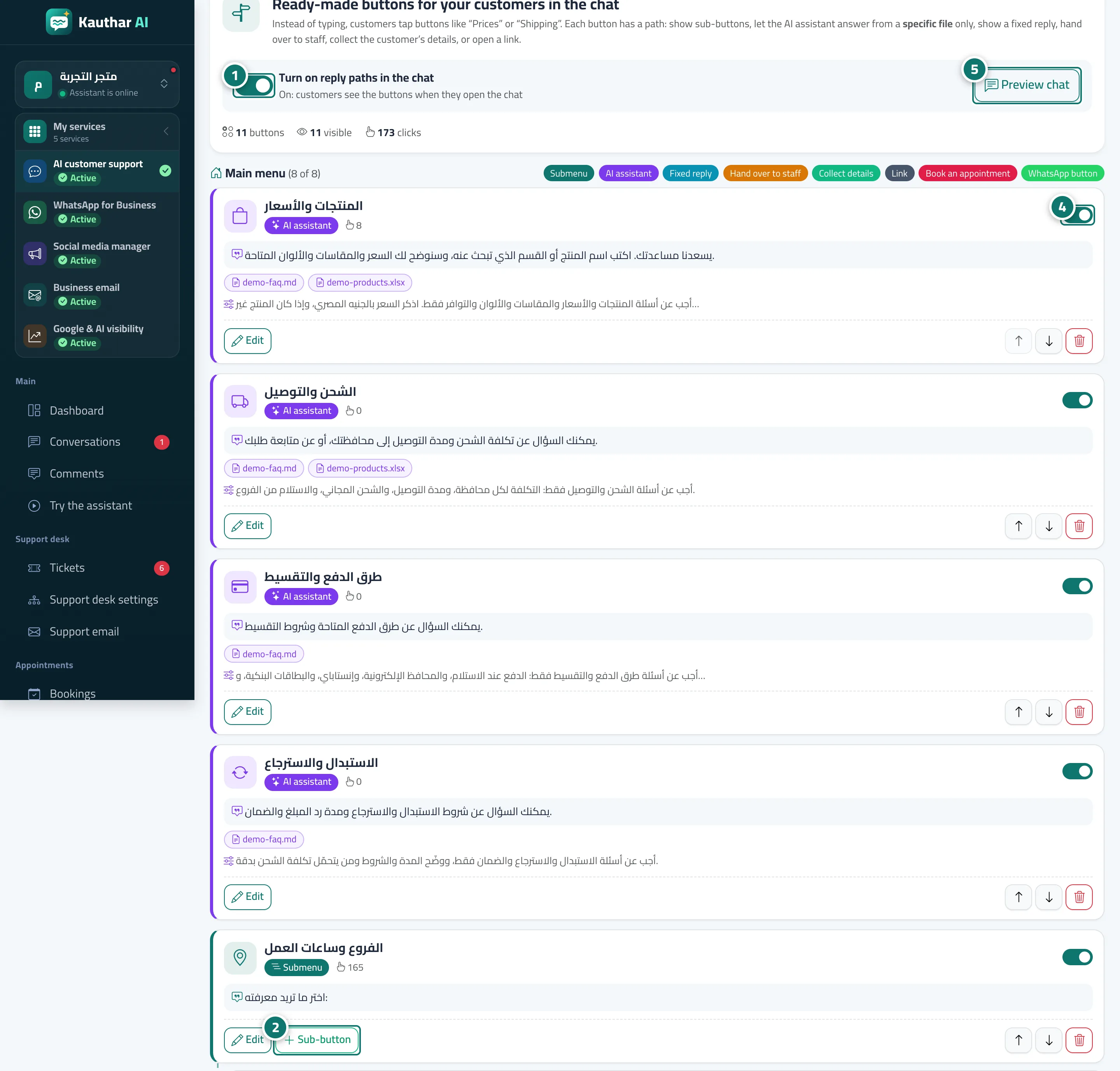
- Open «Reply paths» and make sure «Turn on reply paths in the chat» is on. If the list is empty you can start with «Use a template» (it adds: products and prices · shipping and delivery · payment methods · exchanges and returns · talk to a team member). Numéro 1 sur l’image
- Click «Add a button to the main menu», or «Sub-button» under any button of type «Submenu». Numéro 2 sur l’image
- Enter the «Button text», pick an «Icon (optional)» from the library, choose its type under «When the customer taps the button», write the «Message shown to the customer», then click «Save».
- Reorder buttons with «Move up» and «Move down», and show or hide each button with the «Visible to customers» switch. Numéro 4 sur l’image
- Click «Preview chat» to see the buttons exactly as your customers see them. Numéro 5 sur l’image