
Canaux · QR code and a print-ready poster
How do I print a QR code for my business's chat?
A QR code for your chat link that customers scan with their phone to ask instantly, plus a print-ready A5 poster in your brand colour and your customers' language.
Pour qui : Propriétaire et responsable
Où : Sidebar → Channels & customers → Channels → «QR code» card
Étapes
- Open «Channels».
- In the «QR code» card, click «Download PNG» to save the code.
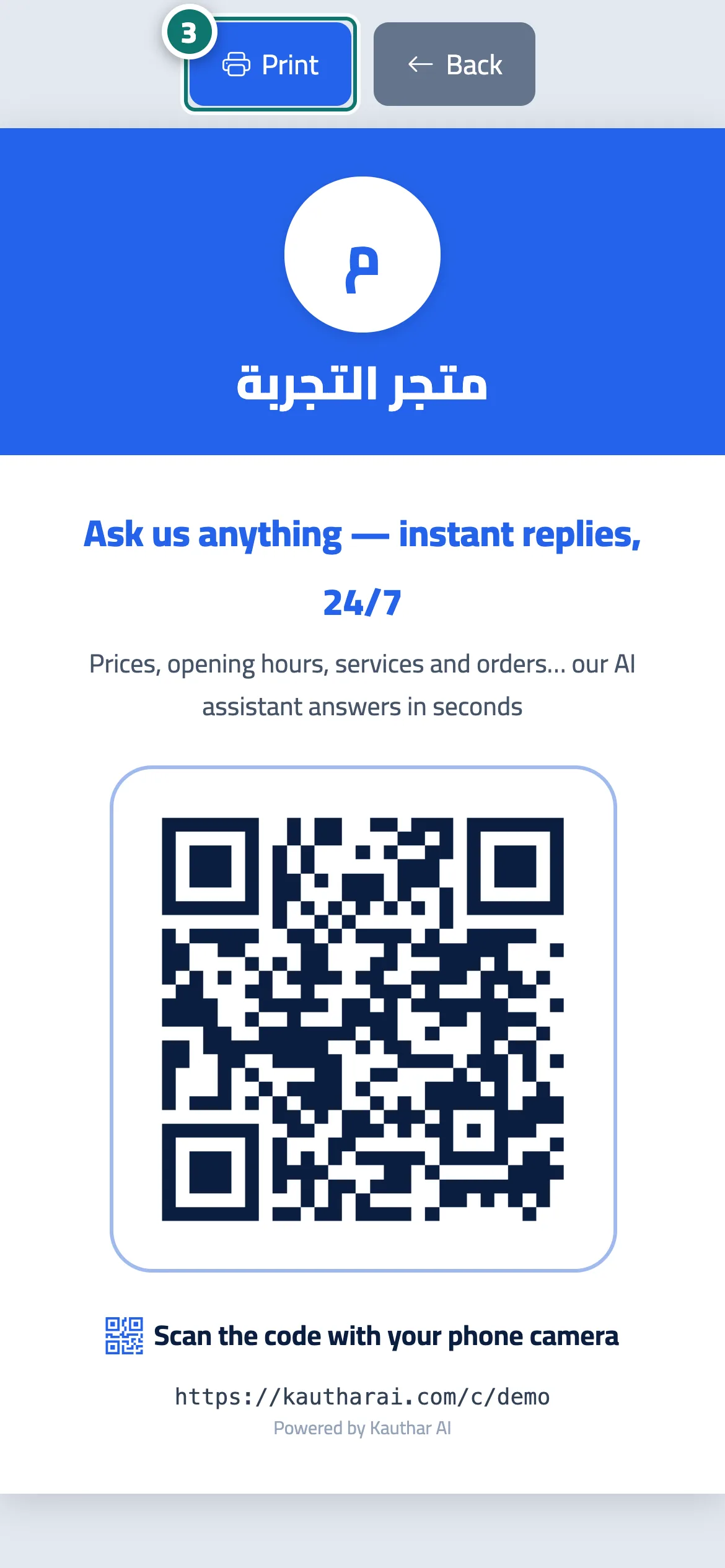
- Or choose the «Poster language», then click «Printable A5 poster» and then «Print». Numéro 3 sur l’image
- Put the poster by the till, on the shop door, on the menu, on business cards or on bags.
Étapes
- Open «Channels».
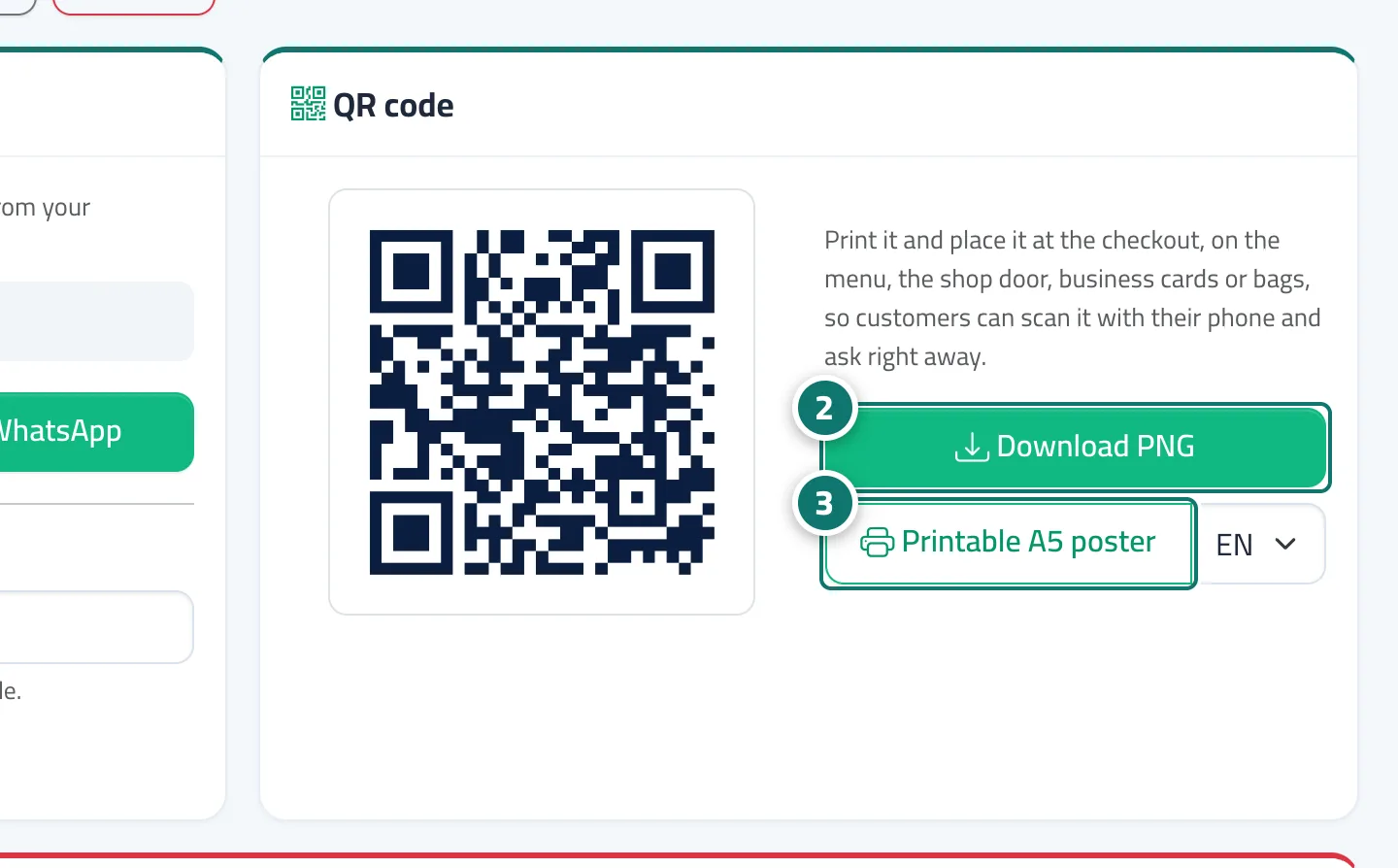
- In the «QR code» card, click «Download PNG» to save the code. Numéro 2 sur l’image
- Or choose the «Poster language», then click «Printable A5 poster» and then «Print». Numéro 3 sur l’image
- Put the poster by the till, on the shop door, on the menu, on business cards or on bags.