
Conversations et support · Canned responses with variables
How do I create a canned response to use in tickets?
Saved replies that fill in the customer's name, ticket number and agent's name automatically, inserted in two clicks.
Pour qui : Propriétaire et responsable · Membres de l'équipe
Où : Sidebar → Support desk → Support desk settings → Canned responses
Étapes
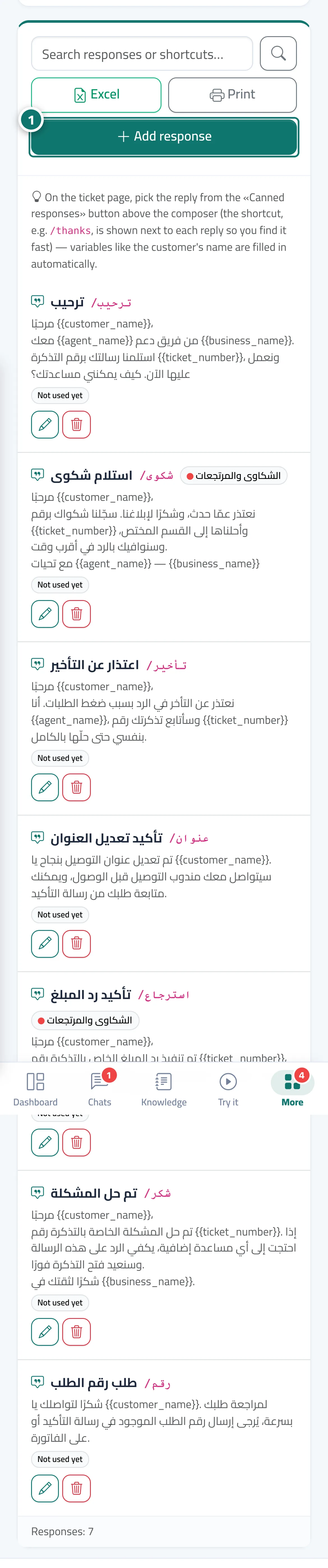
- Open «Support desk settings» → the «Canned responses» tab and press «Add response». Numéro 1 sur l’image
- Enter the «Title», «Shortcut» and «Response text», click the variables («Customer name», «Ticket number»…) to add them to the text, and check the «Preview».
- Press «Save».
- On any ticket page, press the «Canned responses» button in the composer, search by shortcut or a word from the title, then pick the response.
- The response is inserted into the composer with the variables filled in; edit it if you like, then press «Send».
Étapes
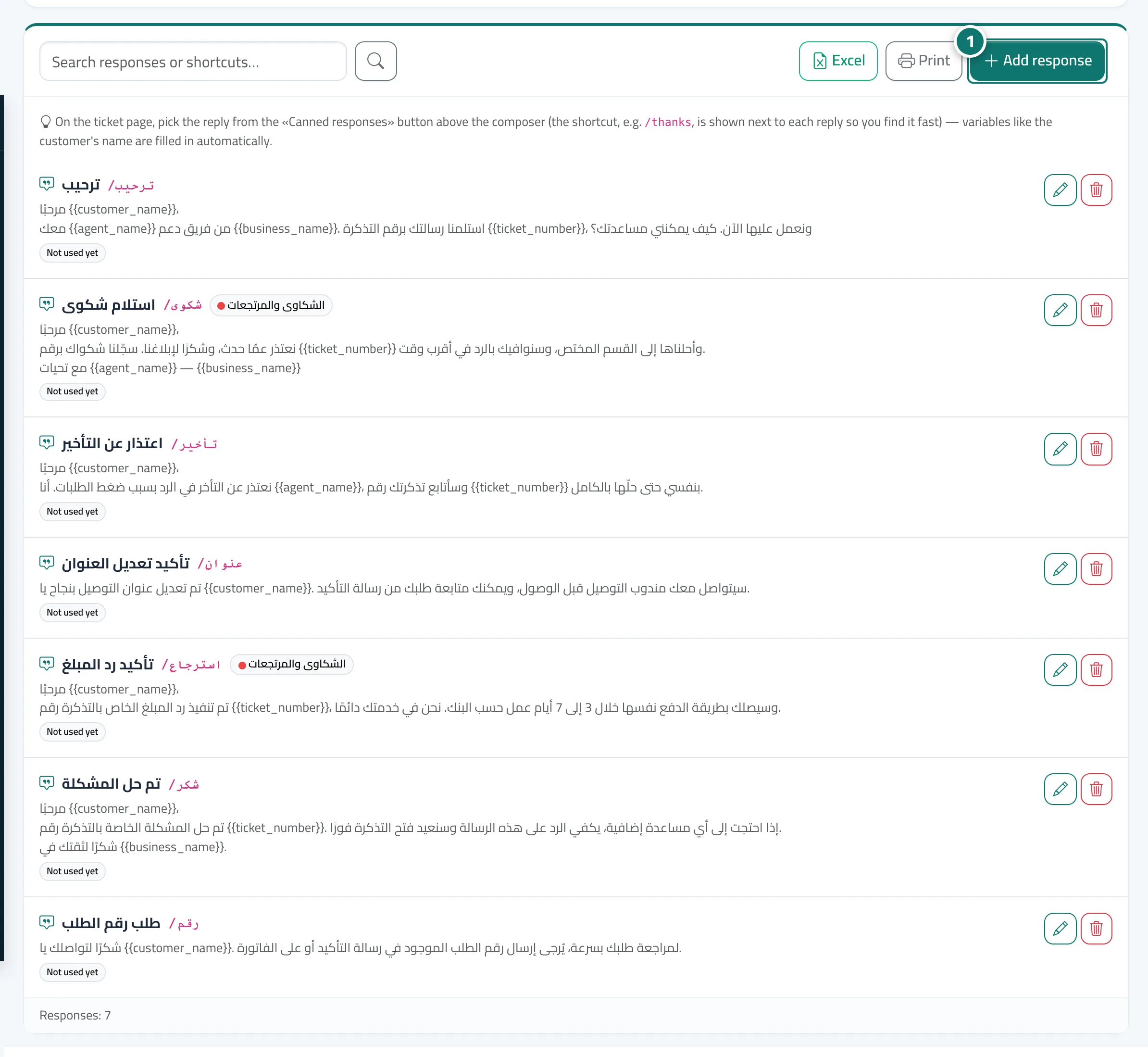
- Open «Support desk settings» → the «Canned responses» tab and press «Add response». Numéro 1 sur l’image
- Enter the «Title», «Shortcut» and «Response text», click the variables («Customer name», «Ticket number»…) to add them to the text, and check the «Preview».
- Press «Save».
- On any ticket page, press the «Canned responses» button in the composer, search by shortcut or a word from the title, then pick the response.
- The response is inserted into the composer with the variables filled in; edit it if you like, then press «Send».