
Conversations et support · The complete ticket page
How do I change a ticket's status, priority or assignee?
The full history of a request — messages and changes — with its properties and the customer's details right beside it, without switching screens.
Pour qui : Propriétaire et responsable · Membres de l'équipe
Où : Sidebar → Support desk → Tickets → (the ticket)
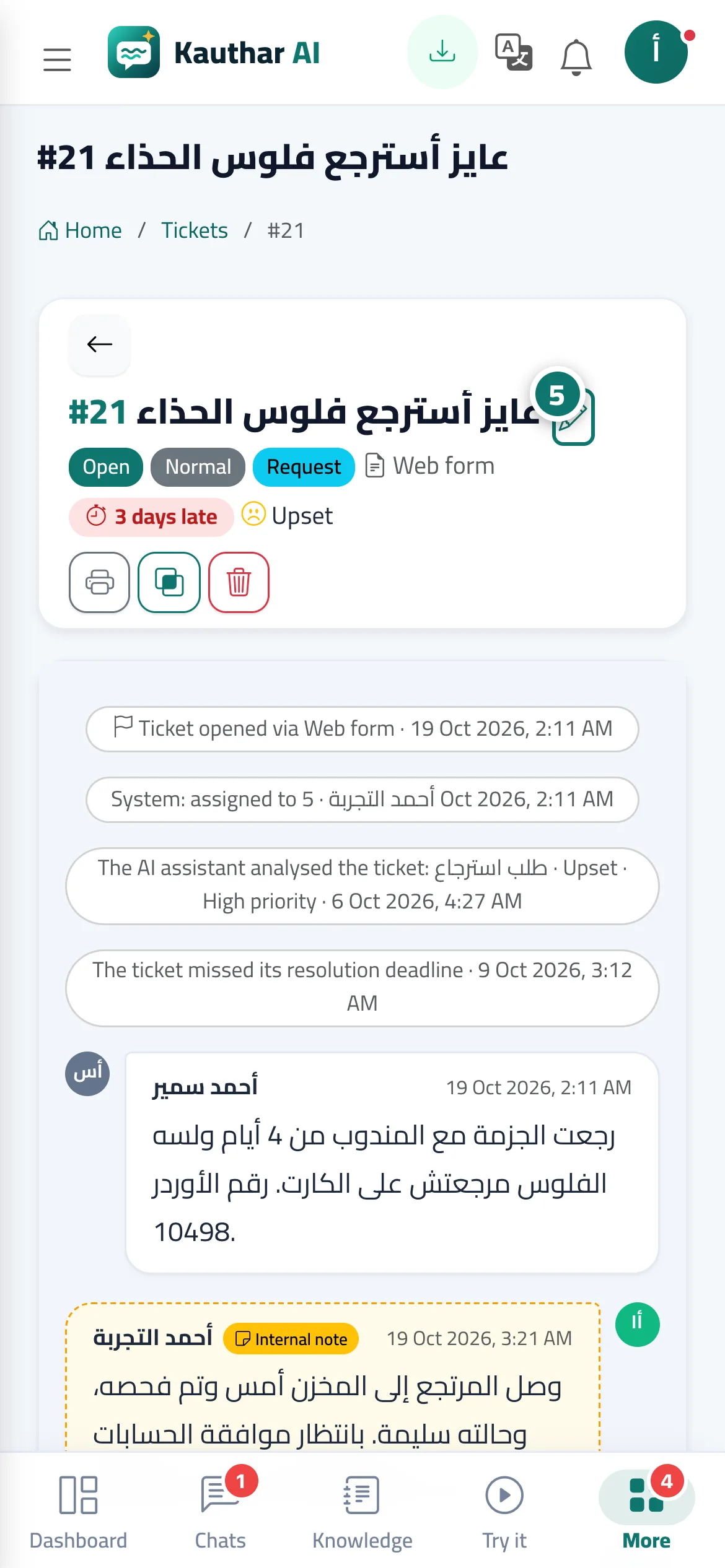
Étapes
- Open the ticket from the list.
- Change any property in the «Properties» card; changes are saved immediately and recorded in the ticket history.
- Press «Assign to me» to take the ticket yourself if it isn't already assigned to you.
- Add a tag by typing it in the «Add a tag, then Enter» field.
- To edit the ticket subject, press the «Edit subject» pencil icon next to it. Numéro 5 sur l’image
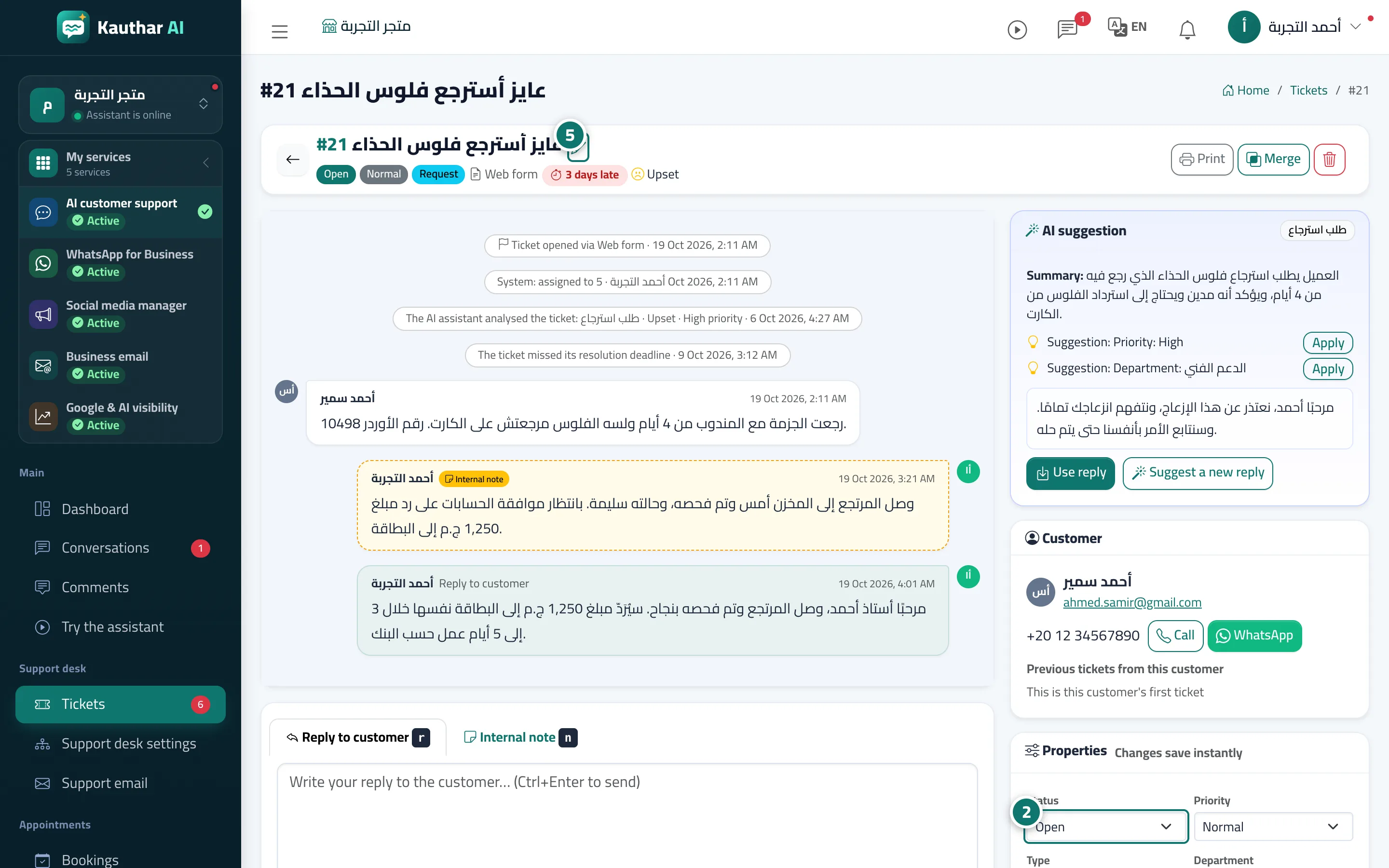
Étapes
- Open the ticket from the list.
- Change any property in the «Properties» card; changes are saved immediately and recorded in the ticket history. Numéro 2 sur l’image
- Press «Assign to me» to take the ticket yourself if it isn't already assigned to you.
- Add a tag by typing it in the «Add a tag, then Enter» field.
- To edit the ticket subject, press the «Edit subject» pencil icon next to it. Numéro 5 sur l’image