
Conversations et support · Live conversations
How do I follow my customers' conversations with the AI assistant?
Follow your customers' conversations with the AI assistant as they happen, and see at once who needs a person from your team.
Pour qui : Propriétaire et responsable · Membres de l'équipe
Où : Sidebar → Main → Conversations
Étapes
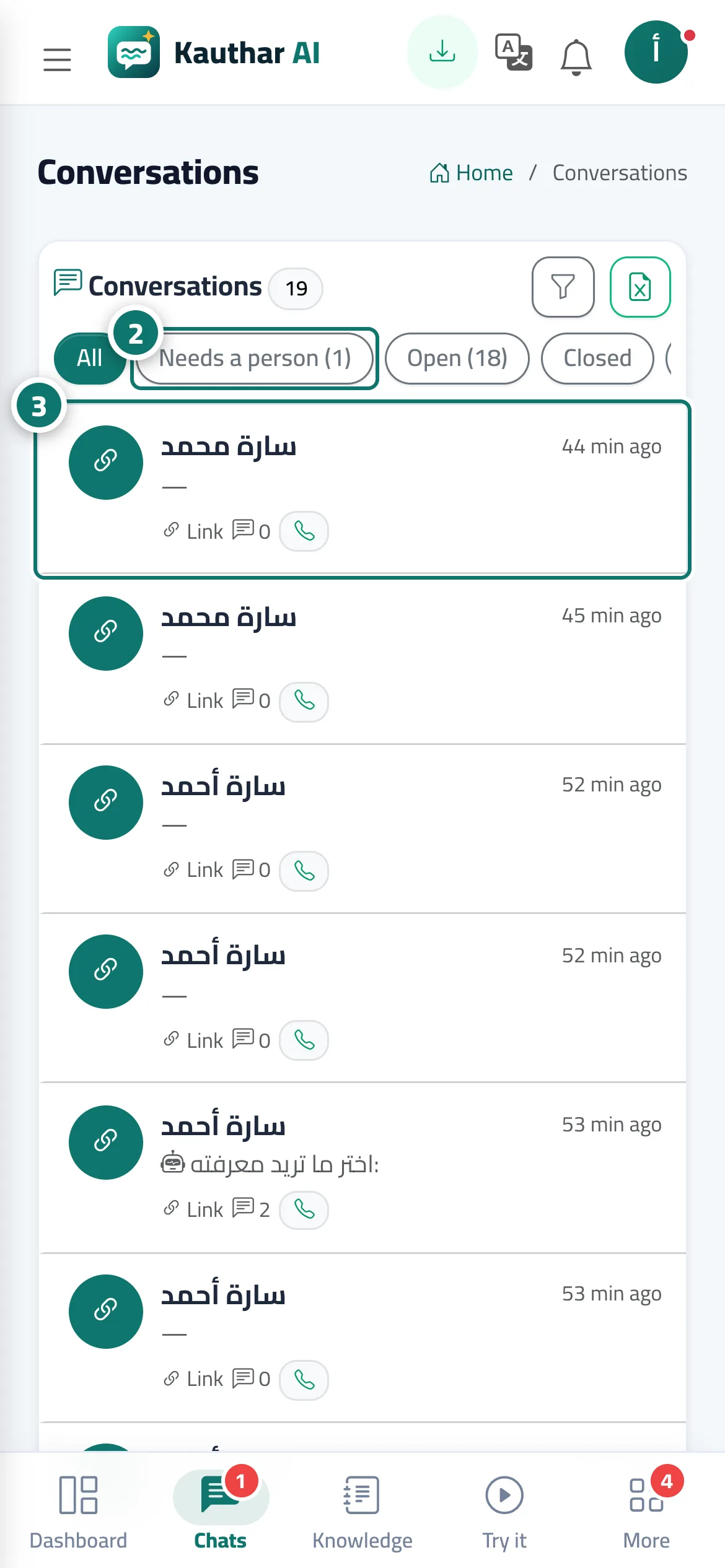
- Open “Conversations”; the number next to it in the sidebar is how many conversations need an agent.
- Choose “Needs an agent” to show the conversations waiting for a reply from your support team. Numéro 2 sur l’image
- Pick a conversation to see all its messages and the customer's details: phone, the page they were browsing, start date, number of messages, conversation language and rating. Numéro 3 sur l’image
- From “More” you can: “Print conversation” · “Close” · “Reopen” · “Delete”.
Étapes
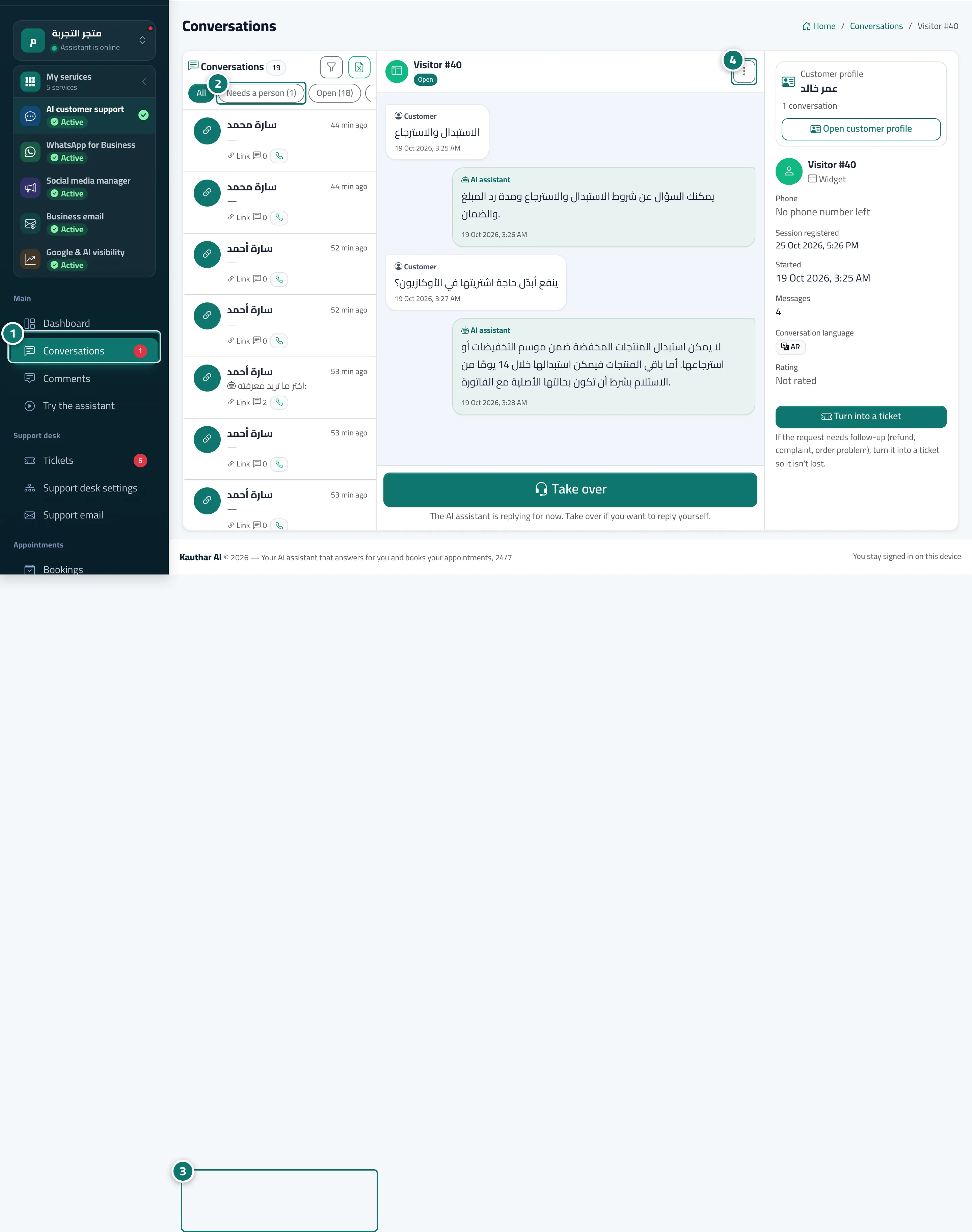
- Open “Conversations”; the number next to it in the sidebar is how many conversations need an agent. Numéro 1 sur l’image
- Choose “Needs an agent” to show the conversations waiting for a reply from your support team. Numéro 2 sur l’image
- Pick a conversation to see all its messages and the customer's details: phone, the page they were browsing, start date, number of messages, conversation language and rating. Numéro 3 sur l’image
- From “More” you can: “Print conversation” · “Close” · “Reopen” · “Delete”. Numéro 4 sur l’image