
Conversations et support · Out-of-hours notice
What does a customer see if they message us outside working hours?
When a customer gets in touch outside working hours, they are told automatically when to expect a reply, so they're never left wondering.
Pour qui : Propriétaire et responsable · Vos clients
Où : Sidebar → Support desk → Support desk settings → «Working hours» tab
Étapes
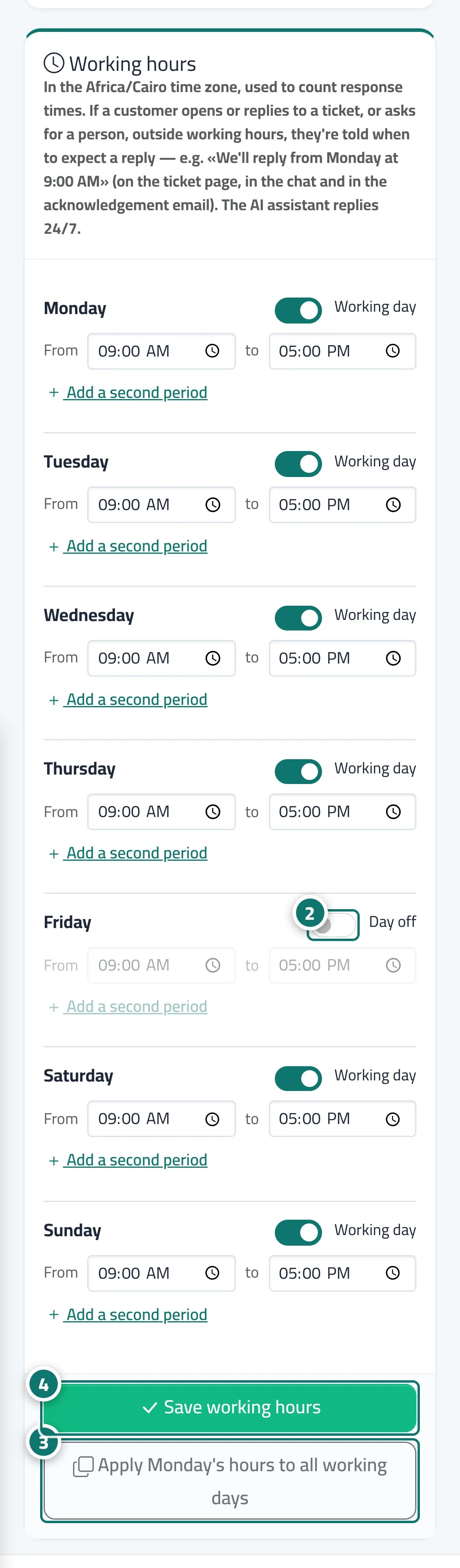
- Open «Support desk settings», then the «Working hours» tab.
- For each day, turn on «Working day» or leave it as «Day off», set the period from and to, and press «Add a second period» if you work two shifts. Numéro 2 sur l’image
- You can press «Apply Saturday's hours to all working days» to save time. Numéro 3 sur l’image
- Press «Save working hours». Numéro 4 sur l’image
Étapes
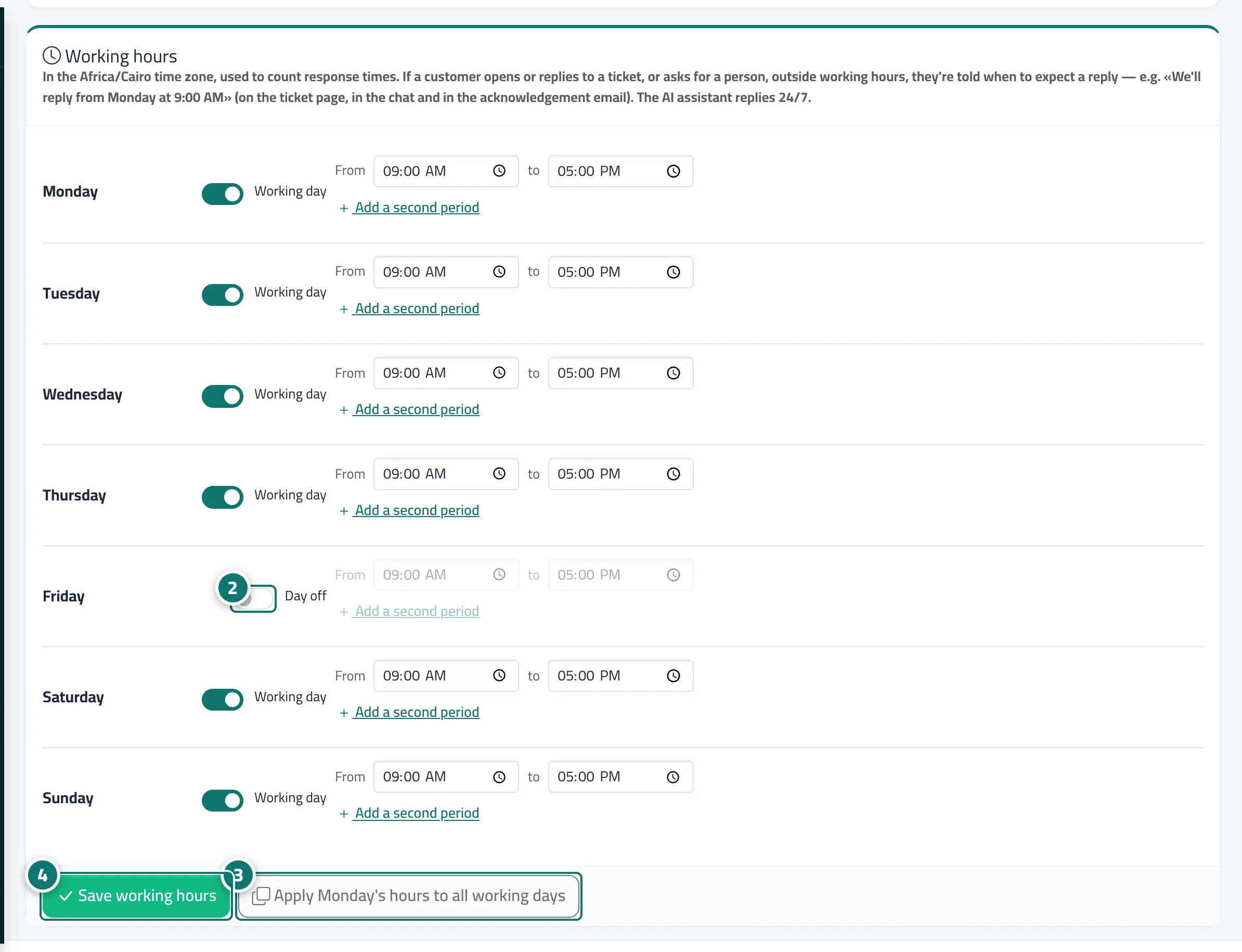
- Open «Support desk settings», then the «Working hours» tab.
- For each day, turn on «Working day» or leave it as «Day off», set the period from and to, and press «Add a second period» if you work two shifts. Numéro 2 sur l’image
- You can press «Apply Saturday's hours to all working days» to save time. Numéro 3 sur l’image
- Press «Save working hours». Numéro 4 sur l’image