
Équipe et sécurité · Your business's brand
How do I change the chat page and website widget to my brand colour?
Your business's colour, logo and name on every page your customers see, from the chat to booking, tickets and emails.
Pour qui : Propriétaire et responsable
Où : Sidebar → Account → Settings & subscription → «Brand» tab
Étapes
- Open «Settings & subscription», then the «Brand» tab.
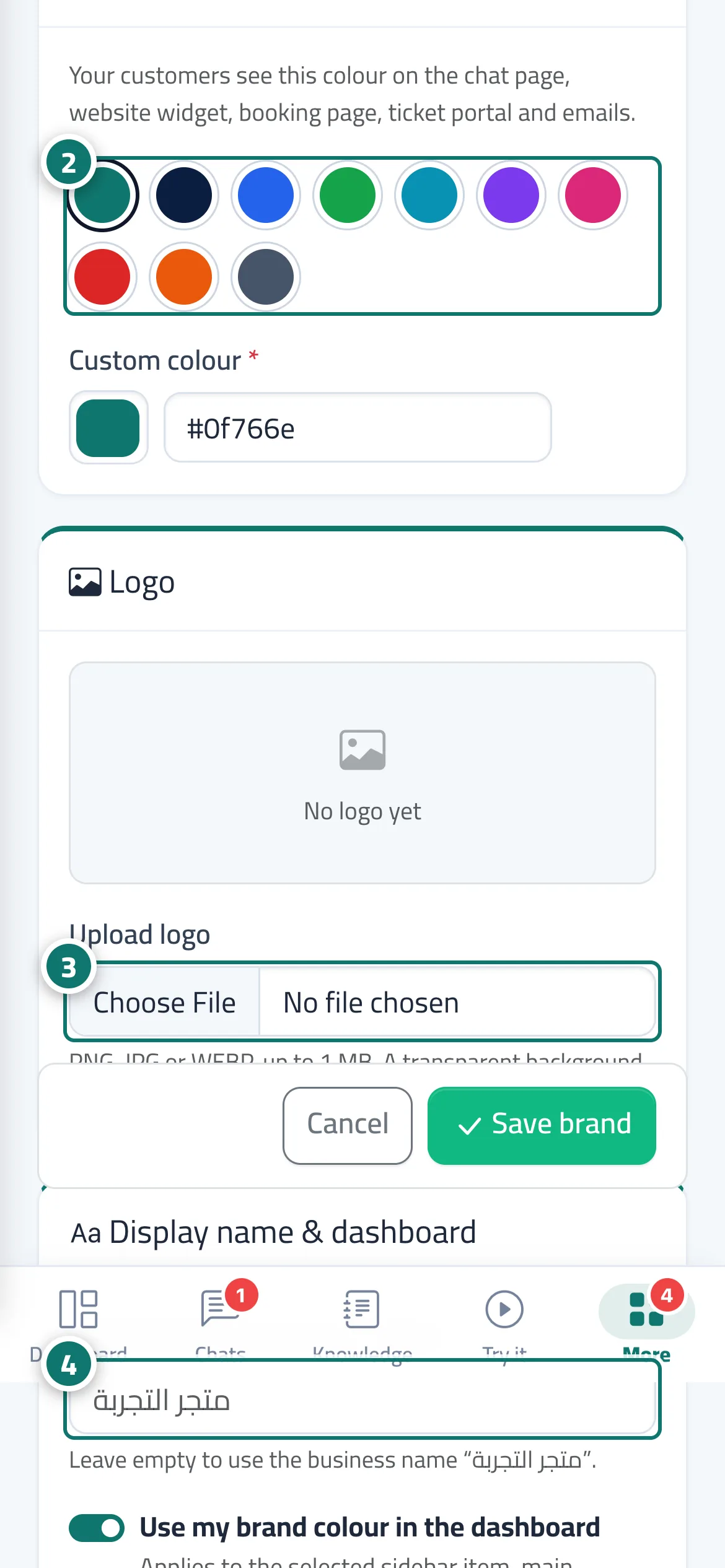
- In «Brand colour», pick one of the suggested colours or enter yours in «Custom colour». Numéro 2 sur l’image
- Under «Logo», press «Upload logo» and choose a PNG, JPG or WEBP image. Numéro 3 sur l’image
- Type the «Name shown to your customers», or leave it empty to use the business name. Numéro 4 sur l’image
- Turn «Use my brand colour in the dashboard» on or off, then press «Save brand».
Étapes
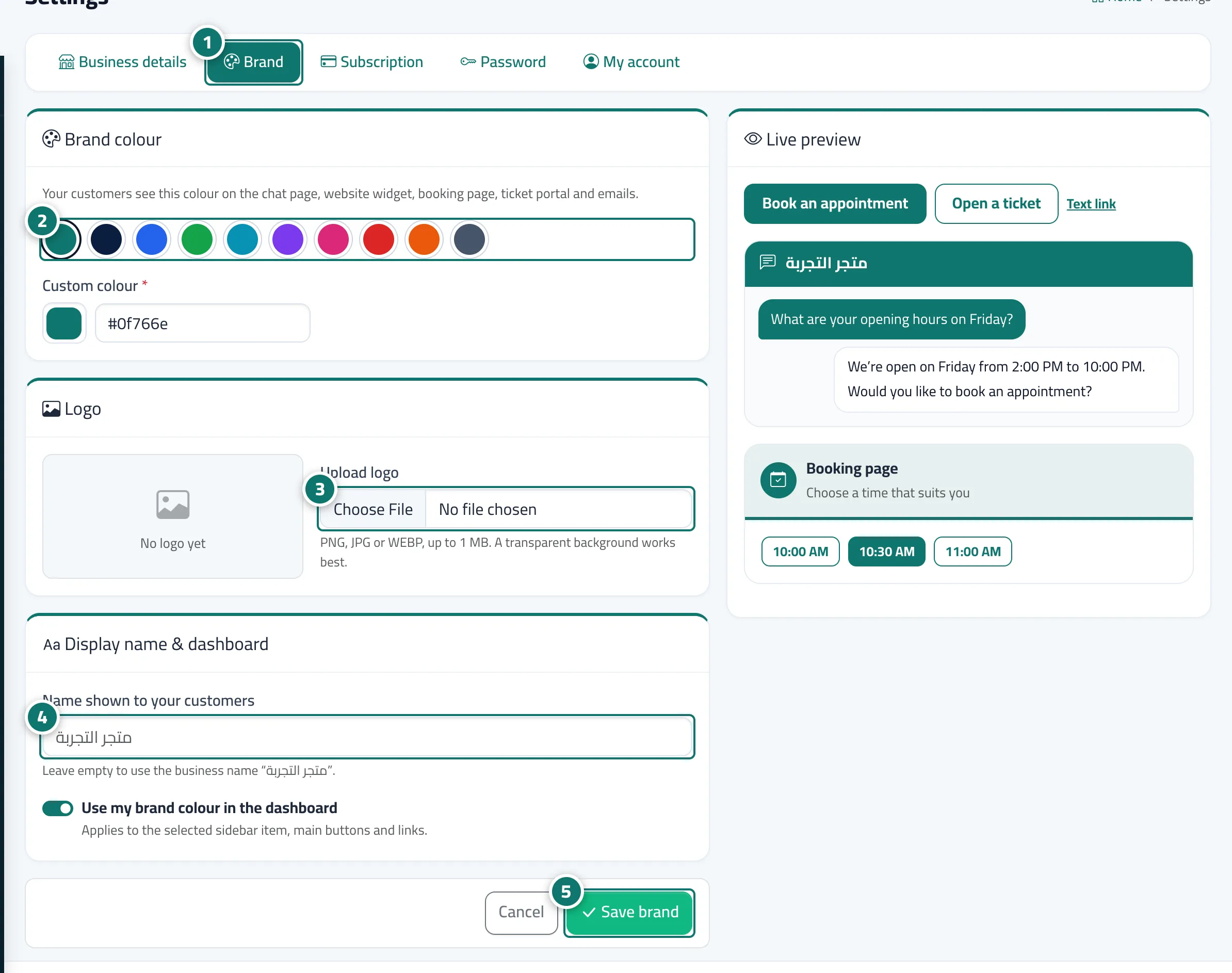
- Open «Settings & subscription», then the «Brand» tab. Numéro 1 sur l’image
- In «Brand colour», pick one of the suggested colours or enter yours in «Custom colour». Numéro 2 sur l’image
- Under «Logo», press «Upload logo» and choose a PNG, JPG or WEBP image. Numéro 3 sur l’image
- Type the «Name shown to your customers», or leave it empty to use the business name. Numéro 4 sur l’image
- Turn «Use my brand colour in the dashboard» on or off, then press «Save brand». Numéro 5 sur l’image