
Stores & integrations · The Kauthar panel inside your store or website admin
How do I follow Kauthar from inside my store admin?
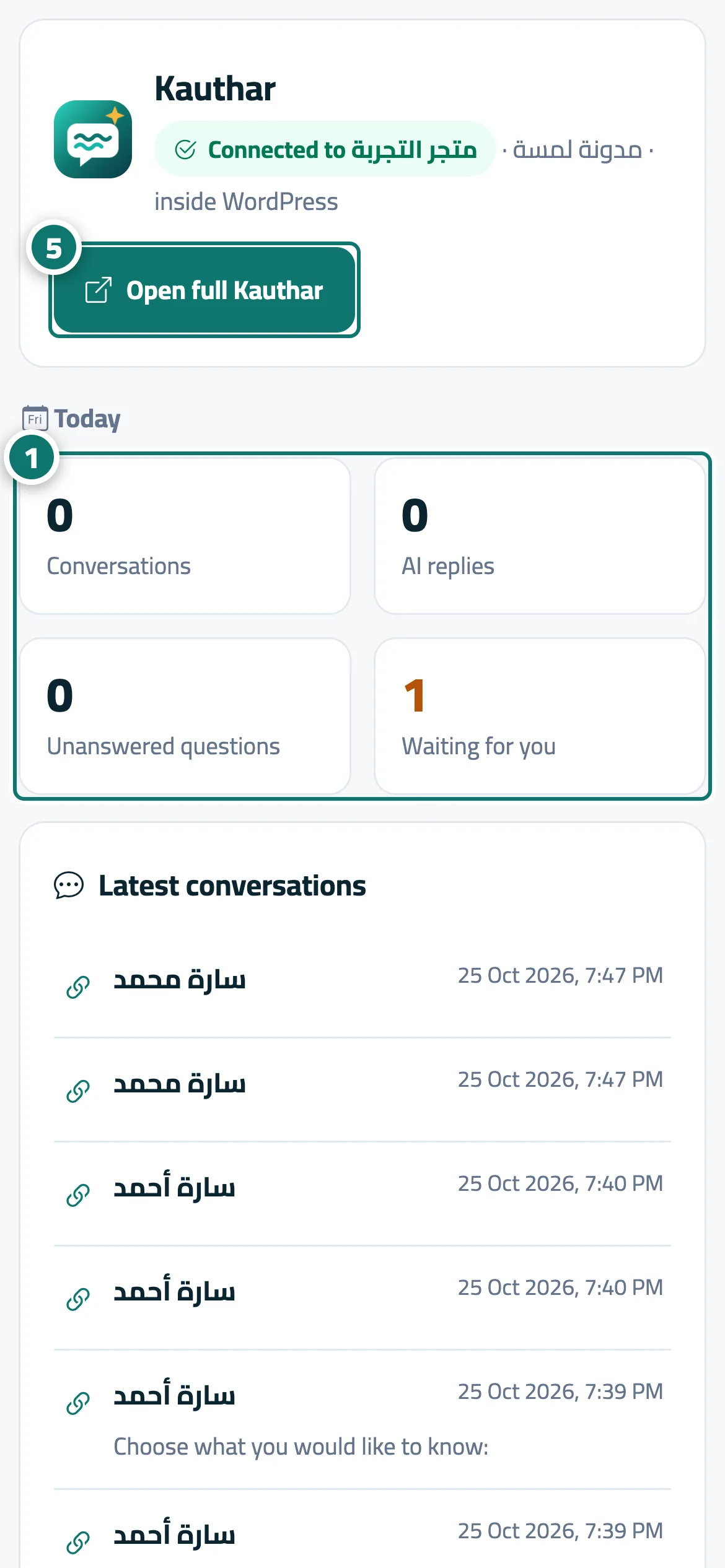
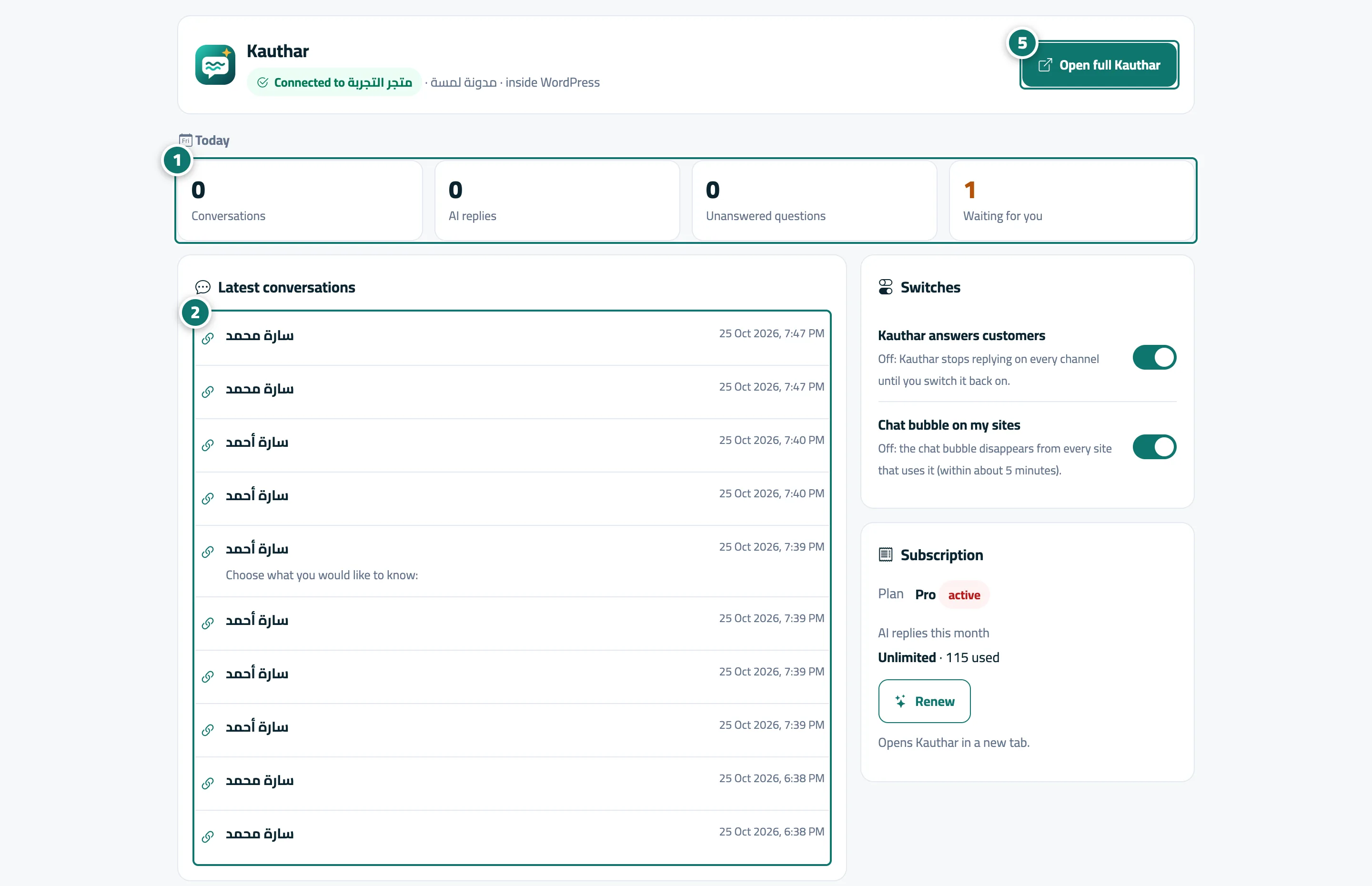
From inside the WordPress, Wix, Shopify, YouCan, Salla or Zid admin: today's numbers, the latest conversations with your own reply, the «Kauthar answers customers» and «Chat bubble on my sites» switches, your subscription, and «Open full Kauthar».
Who this is for: Owner & manager
Where: Your store/site admin → «Kauthar» menu (WordPress: plugin menu · Wix: app page · Shopify, YouCan, Salla, Zid: the app page in the admin)
Steps
- Check the «Today» numbers. Number 1 on the picture
- Open a conversation from «Latest conversations», type your reply and press «Send».
- Use the two «Switches» to pause or resume Kauthar or the chat bubble.
- Check «Subscription» and press «Renew» or «Upgrade» when needed.
- Press «Open full Kauthar» to go to the full Kauthar dashboard. Number 5 on the picture
Steps
- Check the «Today» numbers. Number 1 on the picture
- Open a conversation from «Latest conversations», type your reply and press «Send». Number 2 on the picture
- Use the two «Switches» to pause or resume Kauthar or the chat bubble.
- Check «Subscription» and press «Renew» or «Upgrade» when needed.
- Press «Open full Kauthar» to go to the full Kauthar dashboard. Number 5 on the picture