AI assistant

An assistant that carries your business's name and voice

“Sara from customer service” or “Kauthar” — you choose the name, picture, welcome message and instructions, and see the result in a live preview as you type. Kauthar also writes your business profile herself to answer “What do you offer?”.

Read the user guide Try Kauthar now

Your Kauthar account is free — no time limit, no credit card. Then turn on the services you need.

The “Assistant identity and messages” screen in the Kauthar dashboard on a computer
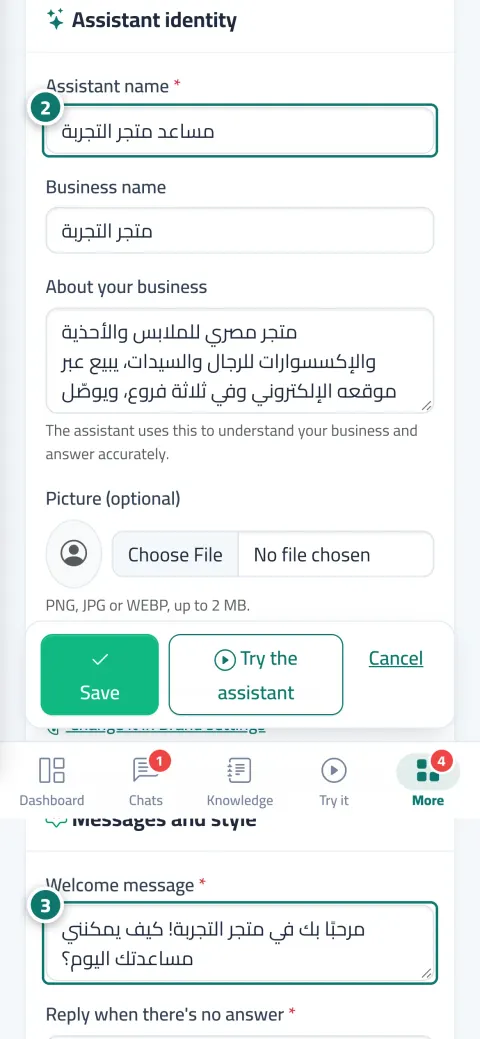
The “Assistant identity and messages” screen in Kauthar on a phone

The problem and the solution

The problem

A generic bot that doesn't look like your business and doesn't know how to greet your customers

A stiff welcome message, a name your customers don't know, and a flat reply to “Tell me about you”. A customer who doesn't feel they're talking to your business itself loses trust from the first message.

The solution with Kauthar

A complete identity you set up in minutes

The assistant's name, the business name in the chat header, the picture, a short description of your business, the welcome message, the reply when there's no answer, and clear working instructions. All shown in your brand colour from the brand identity settings.

What you gain

What your business gets

  • Name, picture and welcome message

    Write the assistant's name and the business name, upload a picture, and word the welcome message and the no-answer reply; the live preview changes as you type.

  • Working instructions she follows

    “Don't offer any discounts”, “Ask for the phone number before confirming any order” — rules you write in “Extra instructions for the assistant”, and Kauthar follows them in every reply.

  • Your business profile, written automatically

    Kauthar sums up your knowledge base into a description, main services, contact methods and key links, and the profile updates itself with every change; so she answers “What do you sell?” with an engaging overview and your product cards.

  • Suggested questions for your customers

    Up to 6 ready questions shown as small buttons under the welcome message on the chat page and your website widget; the customer taps instead of typing.

Three steps

How it works

  1. 01

    Open “Assistant settings” and fill in the “Assistant identity” card: name, business name, description and picture.

  2. 02

    Write the welcome message, the no-answer reply and your instructions, and add the suggested questions.

  3. 03

    Check the live preview and save, then test the result from “Try the assistant”.

Step-by-step instructions with numbered screenshots in the user guide

Inside the product

Inside the dashboard

Screenshots of a demo business; names and numbers are examples.

The “Business profile” screen in the Kauthar dashboard on a computer
Business profile
The “Suggested questions for your customers” screen in the Kauthar dashboard on a computer
Suggested questions for your customers

Real examples

How your business uses it

  • Salon

    An assistant named “Nour” with the salon's picture, a welcome message that mentions current offers, the instruction “Always suggest booking at the end of the reply”, and suggested questions: prices, appointments, address.

  • Clinic

    The clinic's name in the chat header, the instruction “Don't give a diagnosis; offer to book an appointment”, and a no-answer reply that points the patient to the reception number.

  • Service company

    The business profile is written automatically from the services file, so “What do you offer?” gets an overview, bullet points and links, and if you edit it by hand you receive a “Suggested update” when the files change.

FAQ

Frequently asked questions

Can I give the assistant a name other than “Kauthar”?

Yes, type any name in “Assistant name” and save; it appears in the chat header and messages.

Does Kauthar invent prices in the business profile?

No. Any sentence containing a number or link that isn't in your files is removed automatically, and the “Key links” section is built from the links in your files only.

I edited the profile by hand — is my edit lost when I upload a new file?

No. After your edit the text is no longer replaced automatically; instead you receive a “Suggested update” to apply, merge with your edits or ignore.

How do I pause the assistant temporarily?

With the “Assistant active” switch in the “Handoff to staff and activation” card; your customers see “The assistant is currently unavailable”, and your files and answers stay as they are until you turn it back on.

What's the difference between suggested questions and reply paths?

Suggested questions are ready questions sent to the assistant as if the customer typed them. Reply paths are buttons with a defined behaviour: menu, fixed reply, handoff to a person, appointment booking.

Kauthar, the AI assistant

Start with a free account today

Your Kauthar account is free — no time limit, no credit card. Then turn on the services you need.

No credit card Pay only for the services you use Live in minutes