Bookings

Your whole day in one schedule, under your control

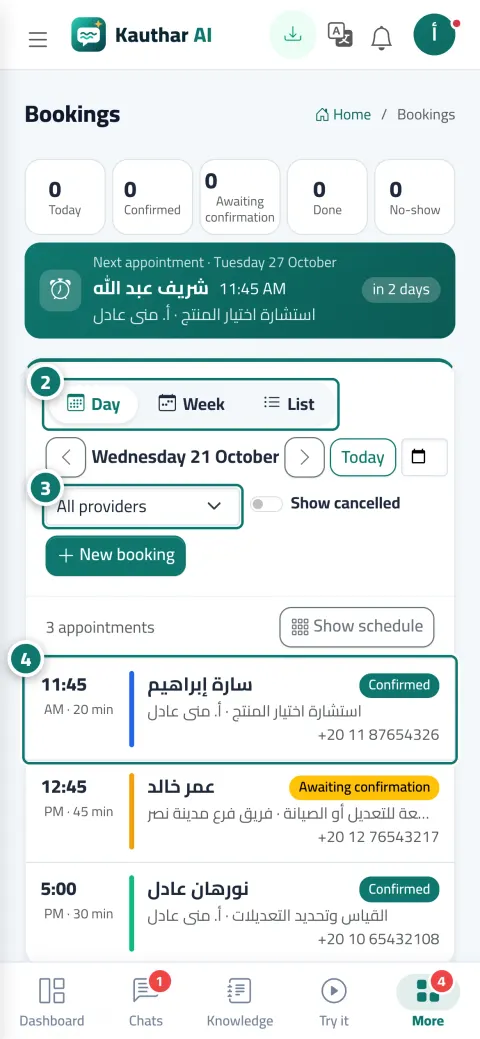
“Today's appointments”, “Pending confirmation” and “Next appointment” with a countdown at the top, and below them an hourly schedule per provider in their colour with a “Now” line. Tap any appointment: confirm, done, no-show, reschedule, cancel, or confirm on WhatsApp.

Read the user guide Try Kauthar now

Your Kauthar account is free — no time limit, no credit card. Then turn on the services you need.

The “Booking schedule: day, week and list” screen in the Kauthar dashboard on a computer
The “Booking schedule: day, week and list” screen in Kauthar on a phone

The problem and the solution

The problem

The notebook doesn't ring when a customer is late, and doesn't know who didn't show up

Appointments in a notebook or a spreadsheet, nobody knows the no-show rate, a customer calls with an old booking number after changing their appointment, and an employee forgets to confirm a pending booking.

The solution with Kauthar

Three views and a details panel for every appointment

“Day” with a column per provider, “Week” with every day and its appointments, and “List” with search by name, phone or booking number and filters by period, service, status and channel, with Excel and print. Plus a “Booking details” panel with every button, the full log and the customer's link.

What you gain

What your business gets

  • Every appointment's status in one click

    “Confirm” for a pending booking, “Done” and “No-show” once the appointment has started, “Reschedule” with the same provider or any available one, “Cancel” with an optional reason, and “Print”.

  • Booking for whoever calls or walks in

    A four-step “New booking” page that recognizes a returning customer by their number and shows their latest bookings, and records the booking source (phone, walk-in, WhatsApp, Facebook) and the customer's language.

  • Today's appointments on the dashboard

    A “Pending confirmation” badge, today's and this week's appointments, the no-show and cancellation rates for the last 30 days, and a list of today's appointments with quick buttons.

  • A full log and the customer's link

    Every booking has a log (booked, reminder, rescheduled, cancelled…) and its manage link, buttons for the linked conversation or ticket if any, and a “Confirm on WhatsApp” button with a ready message.

Three steps

How it works

  1. 01

    Open “Bookings” and choose the day, week or list view.

  2. 02

    Tap any appointment to confirm it, record attendance, reschedule or cancel it.

  3. 03

    Click “New booking” for a customer who calls or walks in, and follow “Today's appointments” from the dashboard.

Step-by-step instructions with numbered screenshots in the user guide

Inside the product

Inside the dashboard

Screenshots of a demo business; names and numbers are examples.

The “Confirming, cancelling and rescheduling an appointment” screen in the Kauthar dashboard on a computer
Confirming, cancelling and rescheduling an appointment
The “Booking for a customer who calls or walks in” screen in the Kauthar dashboard on a computer
Booking for a customer who calls or walks in
The “Today's appointments on the dashboard” screen in the Kauthar dashboard on a computer
Today's appointments on the dashboard

Real examples

How your business uses it

  • Clinic

    A column per doctor in their colour, a “Now” line showing where the day stands, and the receptionist marks “Done” and “No-show” from the same panel so the rates show in the reports.

  • Salon

    A client calls to change her appointment; “Reschedule” with the same stylist, and her manage link stays valid and shows the new time.

  • Training centre

    The “List” view filtered by “Pending confirmation” every morning, and the month's appointments exported to Excel for accounting.

FAQ

Frequently asked questions

Can two appointments be booked with the same provider at the same time?

No, Kauthar prevents overlaps for the same provider even if two customers try to book at the same moment.

If I change the appointment, does the customer know?

If their email is registered and “Support email” is connected, they receive a “Your appointment has been changed” email; otherwise send them the details with the “Confirm on WhatsApp” button.

Does the customer's link change after rescheduling?

No, the same link stays valid and shows the new time, but the booking gets a new number and the old one shows “Cancelled” with “Moved to a new appointment”; so search by phone number if the customer quotes an old number.

In which time zone are appointments shown?

In the time zone set for your business in “Settings & subscription”, whatever your device's time zone.

Can staff book 15 minutes before the appointment despite the “minimum notice” rule?

Yes, from “New booking”; that rule applies to customers' bookings only, and a team booking is confirmed directly.

Kauthar, the AI assistant

Start with a free account today

Your Kauthar account is free — no time limit, no credit card. Then turn on the services you need.

No credit card Pay only for the services you use Live in minutes