
The problem
Your customers ask everywhere, and you answer from everywhere
Messages on Instagram, questions at the door, calls about prices. Every channel needs an employee, and there's no single place where you can say “Ask us here”.
Channels & conversations
Put the link in your Instagram bio, your Facebook Page button and your WhatsApp greeting, and print the QR code at the till or on the menu. Customers open it from any phone and ask Kauthar right away — no app, no account.
Just type your number — Kauthar messages you on WhatsApp and sets up your account with you.
Read the user guide Try Kauthar now
Your Kauthar account is free — no time limit, no credit card. Then turn on the services you need.

The problem
Messages on Instagram, questions at the door, calls about prices. Every channel needs an employee, and there's no single place where you can say “Ask us here”.
The solution with Kauthar
Every business gets a link ending in a name you choose, which opens a chat page in your brand colour and logo and in the customer's device language. The same link as a QR code in PNG for your designs, and a ready A5 poster that says “Ask us anything — instant replies around the clock”.
What you gain
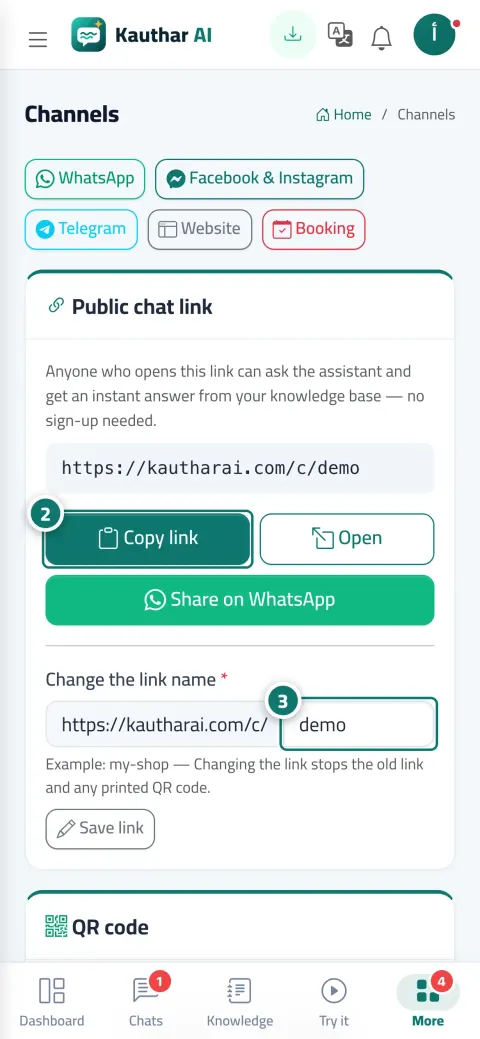
Change the link name to something short that reflects your business, then copy it, open it or share it on WhatsApp with a ready message in one click.
Download the code as a PNG for your designs, business cards and bags; the customer only needs their phone camera.
A poster with your business name, logo and colour and the hint “Scan the code with your phone camera”, in Arabic, English or French, printed straight from the browser.
Conversations that come from the code are recorded under the “QR” channel in Conversations and reports, so you can compare the till, the door and the menu.
Three steps
Open “Channels” and choose a link name that suits your business.
Copy the link into your accounts, or share it on WhatsApp with the ready message.
Download the QR code or print the poster and place it at the till or on the door.
Step-by-step instructions with numbered screenshots in the user guide
Inside the product
Screenshots of a demo business; names and numbers are examples.

2 parts of this feature
One line per part, as documented in the user guide. Open any title for the steps and the screenshots.
One link with your business's name that any customer can open to ask the assistant and get an instant reply — no account to create, no app to download.
A QR code for your chat link that customers scan with their phone to ask instantly, plus a print-ready A5 poster in your brand colour and your customers' language.
Real examples
A QR code on every table and on the menu; guests ask about ingredients, prices and offers and order from the chat, and the reports show which tables ask most.
The link in the Instagram bio and the “Send message” button on Facebook, plus a poster at reception; clients ask about prices and book their appointment from the same page.
A bilingual A5 poster in the waiting room; patients ask about preparation, insurance and appointments without occupying the receptionist.
FAQ
No, they open the link in any browser and type their question directly. If you turn on “Ask for customer details before the chat starts”, they enter their name and number once first.
No, the old link and its code stop working. Download the new code from the “QR code” card and print it.
No, the customer scans it with their phone and opens the chat on their own connection.
3 to 30 lowercase English letters, digits or hyphens, not starting or ending with a hyphen, and not already used by another business.
Yes, the “Booking page” card on the same page shows the booking link and its own QR code when booking is turned on.

Your Kauthar account is free — no time limit, no credit card. Then turn on the services you need.
Explore the dashboard with a ready demo account
No credit card Pay only for the services you use Live in minutes