
The problem
The customer doesn't know what to ask, so they send a vague message or leave
“Hello” and then silence, or one long question about three topics at once. And your employee retypes the website link and opening hours dozens of times a day.
Assistant training
When the chat opens, the customer finds clear buttons: products and prices, shipping, payment methods, book an appointment, talk to a person. Each button runs an action you choose, and the reply arrives instantly.
Just type your number — Kauthar messages you on WhatsApp and sets up your account with you.
Read the user guide Try Kauthar now
Your Kauthar account is free — no time limit, no credit card. Then turn on the services you need.

The problem
“Hello” and then silence, or one long question about three topics at once. And your employee retypes the website link and opening hours dozens of times a day.
The solution with Kauthar
You design the button tree yourself, up to 3 levels: a button opens a sub-menu, sends a fixed reply, opens a link, starts a booking, opens a specific branch's WhatsApp, or limits the AI assistant to the shipping file alone. And you see how many taps each button gets.
What you gain
Sub-menu, AI assistant with specific files, fixed reply, handoff to a person, lead form (name and phone), link, appointment booking, and a green WhatsApp button that opens a chat with the number you choose and a ready message.
The “Shipping” button answers from the shipping file only, with its own instructions, and “Products” from the price list; answers get more accurate and faster, and the customer sees “You're asking about: Shipping”.
Link a button to the WhatsApp number of a specific branch or department (one of your connected numbers or any other number) with a ready message that includes the customer's name, and follow WhatsApp button taps in the reports.
Next to every button, the number of taps; at the top of the page, the total buttons and taps. You learn what customers look for and reorder the menu accordingly.
Three steps
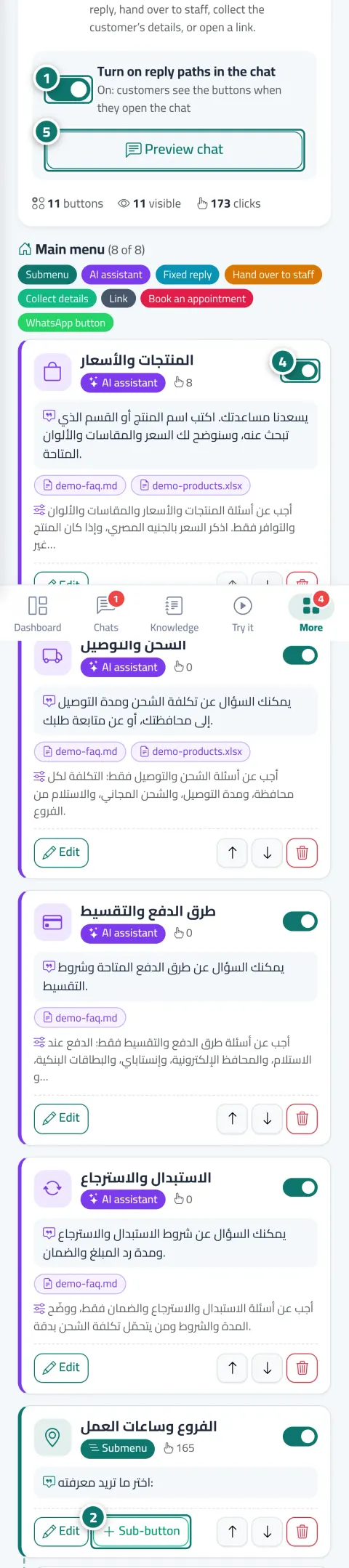
Turn on “Reply paths in the chat” and start from the ready template: products, shipping, payment, returns, talk to a person.
Add your buttons: the text, an icon from the 47-icon library, the action type, and the message the customer sees.
Order the buttons, hide any with the “Visible to customers” switch, then check the look in “Preview chat”.
Step-by-step instructions with numbered screenshots in the user guide
Inside the product
Screenshots of a demo business; names and numbers are examples.


4 parts of this feature
One line per part, as documented in the user guide. Open any title for the steps and the screenshots.
Ready-made buttons in the chat, such as «Prices» and «Shipping», that take your customer to their answer in one tap with an instant reply.
The «Shipping» button answers only from your shipping file and the «Products» button from your price list, so answers are more accurate and faster.
Pick a professional icon for every reply-path button from a library of 47 icons grouped by type of business.
Customers find buttons such as “Products & prices” and “Shipping & delivery” and reach their answer with one tap, without typing.
Real examples
“Menu” opens the menu link, “Delivery” is a fixed reply with coverage areas and the minimum order, “Order now” is a WhatsApp button that opens the nearest branch's number with a ready message, and “Book a table” starts the booking steps.
“Products & prices” is an AI assistant limited to the price list, “Track my shipment” answers from the shipping file, “Exchanges & returns” is a fixed reply with the full policy, and “Talk to a person” hands the conversation to your team.
A sub-menu with “Apartments”, “Villas” and “Commercial”, each with a button that answers from its own units file, and a “Request a viewing” button that collects the customer's name and number on the spot.
FAQ
Yes, at any time. The buttons are just a faster route, and you can turn them all off with one switch so the chat works by typing alone.
Up to 8 buttons per menu and 3 levels. Button text is 2 to 40 characters, and a fixed reply up to 1,500 characters.
Fixed replies, links and sub-menus don't count and arrive instantly. Replies written by the AI assistant inside an “AI assistant” button count like any AI reply.
No; icons come from a unified library of 47 icons grouped by category (shopping, shipping, payment, appointments, contact, information) so the menu looks professional, and you can choose “No icon”.
When booking is turned on and you have an active booking service in “Booking setup”; the button then starts the booking steps inside the same conversation.
Its sub-buttons are deleted after a confirmation message and can't be restored from the trash. To pause temporarily, use the “Visible to customers” switch instead of deleting.

Your Kauthar account is free — no time limit, no credit card. Then turn on the services you need.
Explore the dashboard with a ready demo account
No credit card Pay only for the services you use Live in minutes