Dashboard

Open Kauthar and know everything in ten seconds

The dashboard brings bookings, the help desk, the AI assistant and conversations into one tabbed screen, with today's, this week's and the last thirty days' numbers. No reports to open, no screens to hop between to see where you stand.

Read the user guide Try Kauthar now

Your Kauthar account is free — no time limit, no credit card. Then turn on the services you need.

The “Dashboard” screen in the Kauthar dashboard on a computer
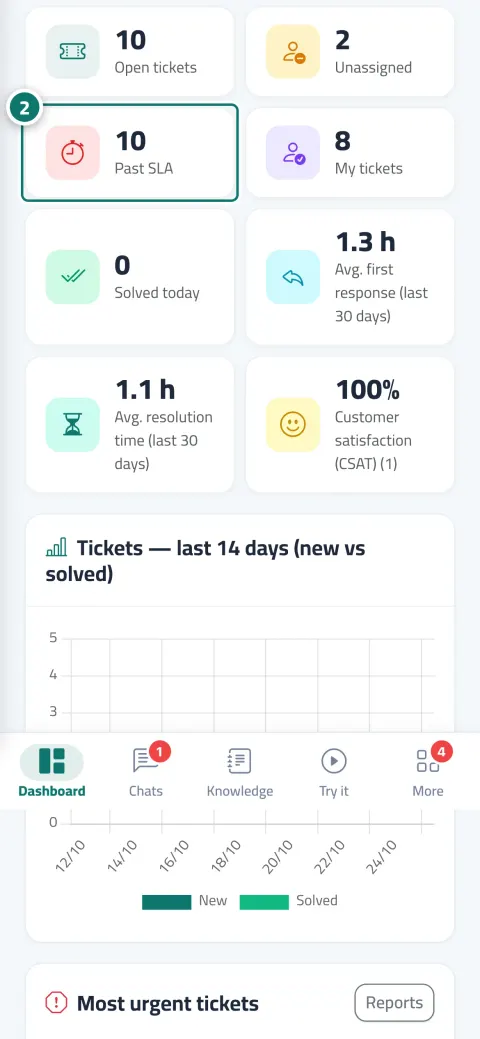
The “Dashboard” screen in Kauthar on a phone

The problem and the solution

The problem

The information exists, scattered across five screens

How many appointments today? How many tickets passed their deadline? Are customers happy? How many replies did the assistant write? Each question has its own screen, a busy owner never opens them, and the problem shows up late.

The solution with Kauthar

The numbers that matter reach you first

Bookings: today's and this week's appointments and the no-show rate. Help desk: open, unassigned and overdue tickets, average first-response and resolution times, customer satisfaction. AI assistant: conversations, answer rate and unanswered questions. Then the latest conversations and the questions that need you, all in tabs, no scrolling.

What you gain

What your business gets

  • Today's appointments, ready

    Today's list with service, provider and status under the week's numbers, plus the no-show and cancellation rates of the last thirty days, so you see what really happens.

  • The tickets that need you

    Open, unassigned and overdue tickets, what was resolved today, average first-response and resolution times, and a fourteen-day chart.

  • How your assistant performs

    Conversations, the share of questions answered from your information, and the questions it could not answer so you add them to the knowledge base, with the monthly reply meter.

  • The latest conversations at hand

    The newest conversations from every channel and the questions waiting for a human reply, with your chat link and QR code to share from the same place.

Three steps

How it works

  1. 01

    Sign in; the dashboard is the first screen of the AI customer support service.

  2. 02

    Move between the tabs: overview, bookings, help desk, conversations. Each member sees the tabs their permissions allow.

  3. 03

    Click any number or row to jump to its screen: an appointment, a ticket, a conversation or an unanswered question.

Step-by-step instructions with numbered screenshots in the user guide

1 parts of this feature

Everything this feature includes

One line per part, as documented in the user guide. Open any title for the steps and the screenshots.

  • Dashboard

    Your whole customer service at a glance: appointments, tickets, response times, customer satisfaction and how well the AI assistant is doing.

Real examples

How your business uses it

  • Clinic

    The clinic manager starts the morning with today's appointments and last week's no-shows, and knows whether the booking reminders need tuning before another chair goes empty.

  • Online shop

    The owner sees yesterday's conversations and how many questions the assistant could not answer, adds one answer from the dashboard itself, and the row disappears.

  • Service company

    The support manager watches overdue tickets and the average resolution time every morning and assigns the unassigned ones before a customer complains.

FAQ

Frequently asked questions

Do I need to open the reports to see the numbers?

No. The dashboard shows today, this week and the last thirty days directly; the reports are for longer ranges, details and exports.

Does every employee see the same numbers?

The help-desk tab shows to those allowed to view tickets, the bookings tab to those allowed to view bookings. Everyone sees what concerns them.

Do internal test conversations count?

No. Whatever you or your team try in the assistant playground stays out of the dashboard and the reports.

What if I use more than one Kauthar service?

The My services page opens first with a card per service, and from there you enter the AI support dashboard or any other service's home.

Are the numbers live?

They are computed when the page opens. Refresh to see the latest values; bell notifications reach you the moment something needs you.

Does the dashboard work on the phone?

Yes, with the same tabs and a bottom bar for navigation, in the browser or in the Kauthar mobile app.

Kauthar, the AI assistant

Start with a free account today

Your Kauthar account is free — no time limit, no credit card. Then turn on the services you need.

No credit card Pay only for the services you use Live in minutes