
Connect your store and website
Connect your store on Shopify, WooCommerce, Salla, Zid, OpenCart or others, or a product feed or your services website, and Kauthar learns your products, prices and pages automatically.
Vue d’ensemble#
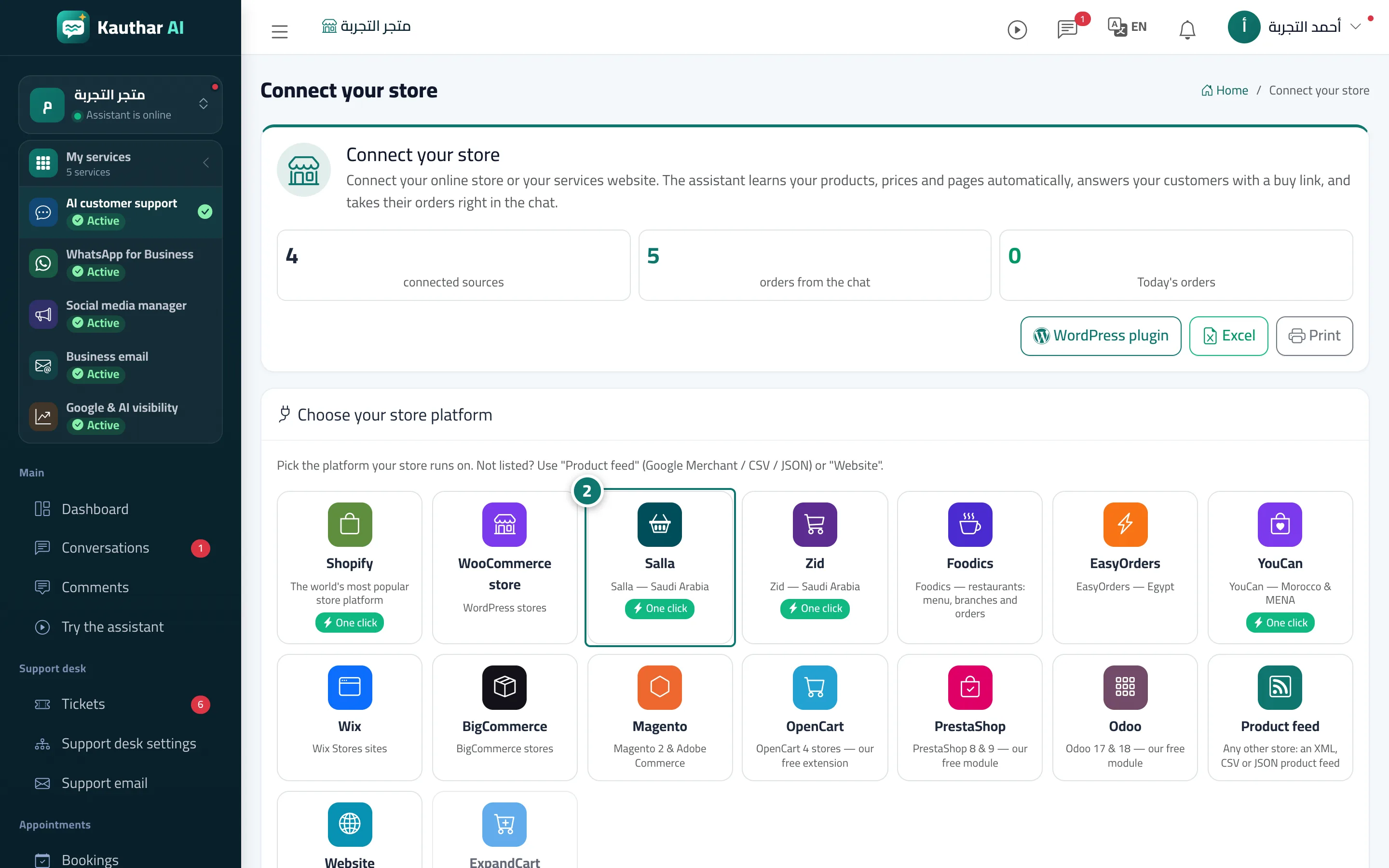
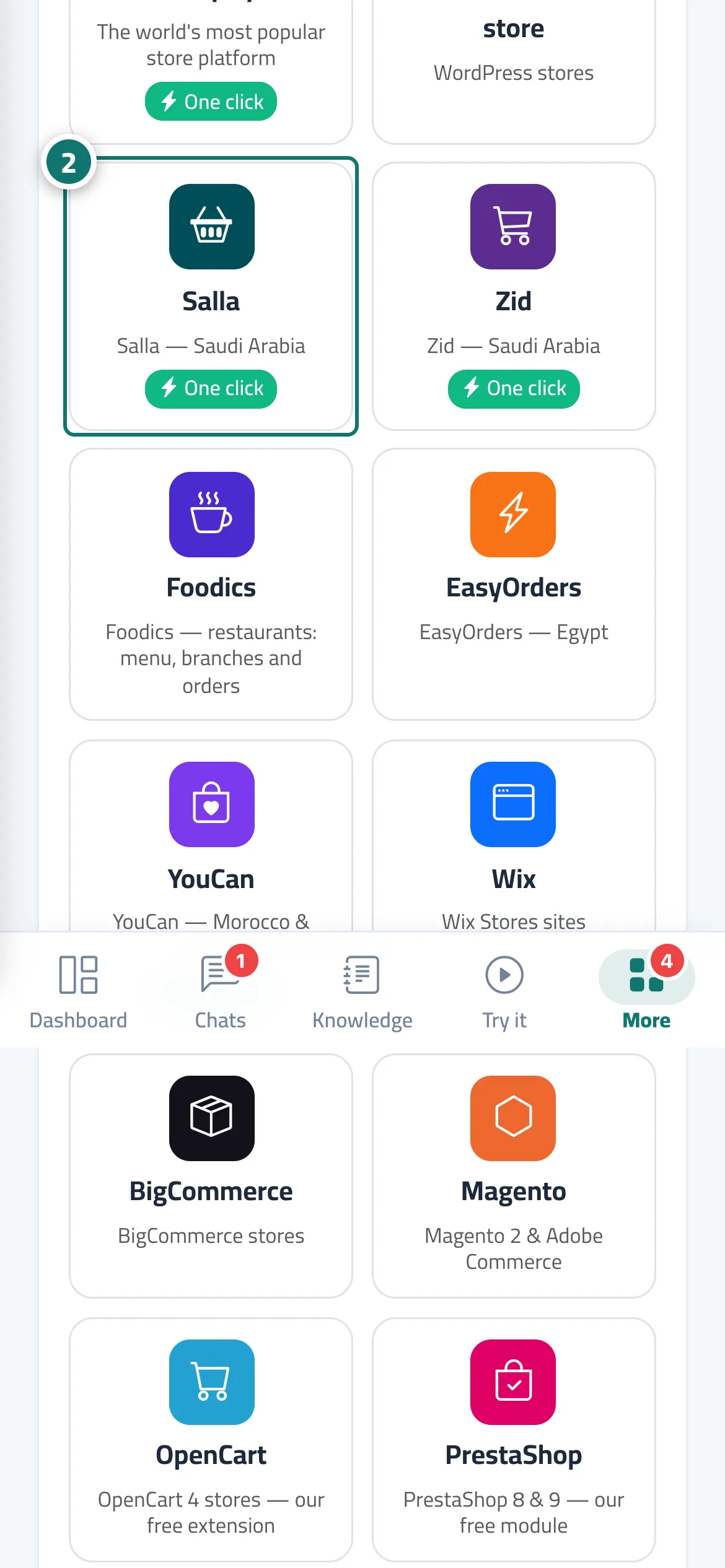
The Connect your store screen links an online source to your knowledge base without uploading files. In Choose your store platform you pick the platform your store runs on: Shopify, WooCommerce (WordPress stores), Salla, Zid, Foodics, EasyOrders, YouCan, Wix, BigCommerce, Magento, OpenCart, PrestaShop or Odoo; if yours isn't listed, choose Product feed (an XML, CSV or JSON file such as a Google Merchant feed) or Website and we read its public pages. Once connected, the assistant reads your products (name, price, discount, availability, picture, options and description) and shows them to customers as cards with the picture, price and a buy button — or answers from your website pages with an Open the page button. On Shopify, Salla, Zid and YouCan you can connect in one click through Kauthar's official app (see Connect your store in one click); WordPress stores connect with the Kauthar plugin (see Kauthar AI plugin for WordPress), and OpenCart, PrestaShop and Odoo connect with the Kauthar extension for each platform, with no keys at all (see Kauthar AI extension for OpenCart, PrestaShop and Odoo). Each source has a card with its status (Waiting to sync / Syncing / Connected / Sync failed / Disconnected when the Kauthar app is removed from your store), a one-click badge for stores connected through the app, the last sync, the number of products or pages and the last error, plus Sync now, Test connection, Edit and Delete — and on some platforms Turn on instant updates so store changes arrive as they happen.
- Pour qui ?
- Business owner / manager (with the Connect your store permission)
- Où le trouver ?
- Sidebar → Train your assistant → Connect your store
Pas à pas#
- Open Connect your store from the sidebar.
- In Choose your store platform press your platform (for example WooCommerce), or Product feed or Website if it isn't listed.
- Type the store or website address, fill in any connection details the platform asks for, then press Connect and start syncing.
- Wait until the status turns to Connected, then try the assistant and ask it about a product by name.
Astuces#
Bon à savoir#
Questions fréquentes#
Do the assistant's prices change when I change them in my store?
Yes — with the daily automatic sync, or straight away when you press Sync now. When a customer orders in the chat, the price is always taken from the store at that moment.
What happens if a sync fails?
The assistant keeps answering from the last successful data, the reason is shown in plain language on the screen, and you get an Automatic sync failed alert if the daily sync fails.
Are my store keys safe?
They are stored encrypted, only their last 4 characters are shown, and they are only sent over a secure (https) connection.
My store shows Disconnected. What does it mean?
The Kauthar app was removed from your store on the platform, so the sync and Where is my order? stopped and the connection keys were deleted. Press Connect in one click to reconnect; the sync starts straight away.