Start with your number only: create and set up your account on WhatsApp
Type the mobile number you use on WhatsApp and Kauthar messages you there to create your account and finish the setup in the chat: services, channels, website, files, appointments, then «Try testing me».
On this page
Overview#
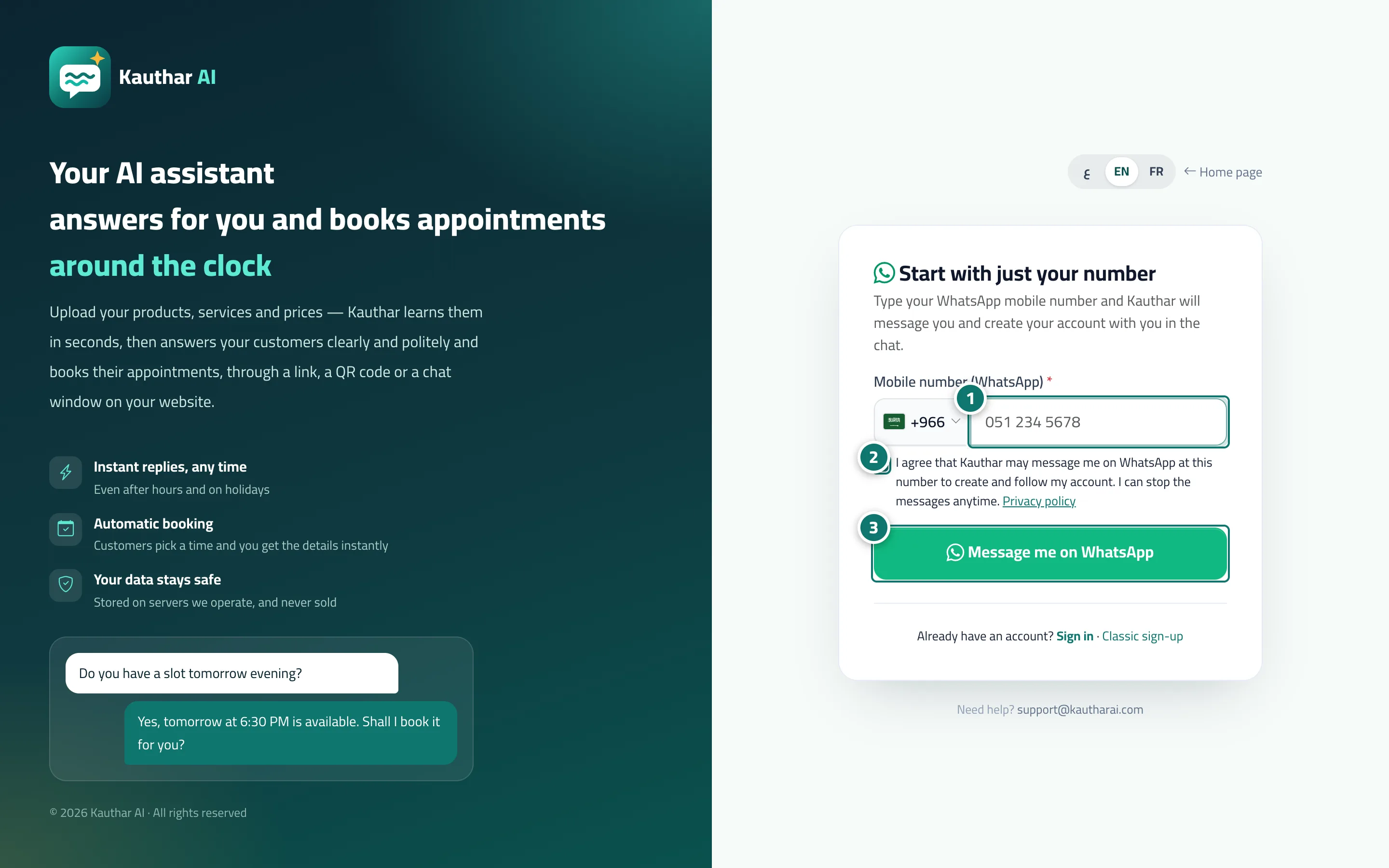
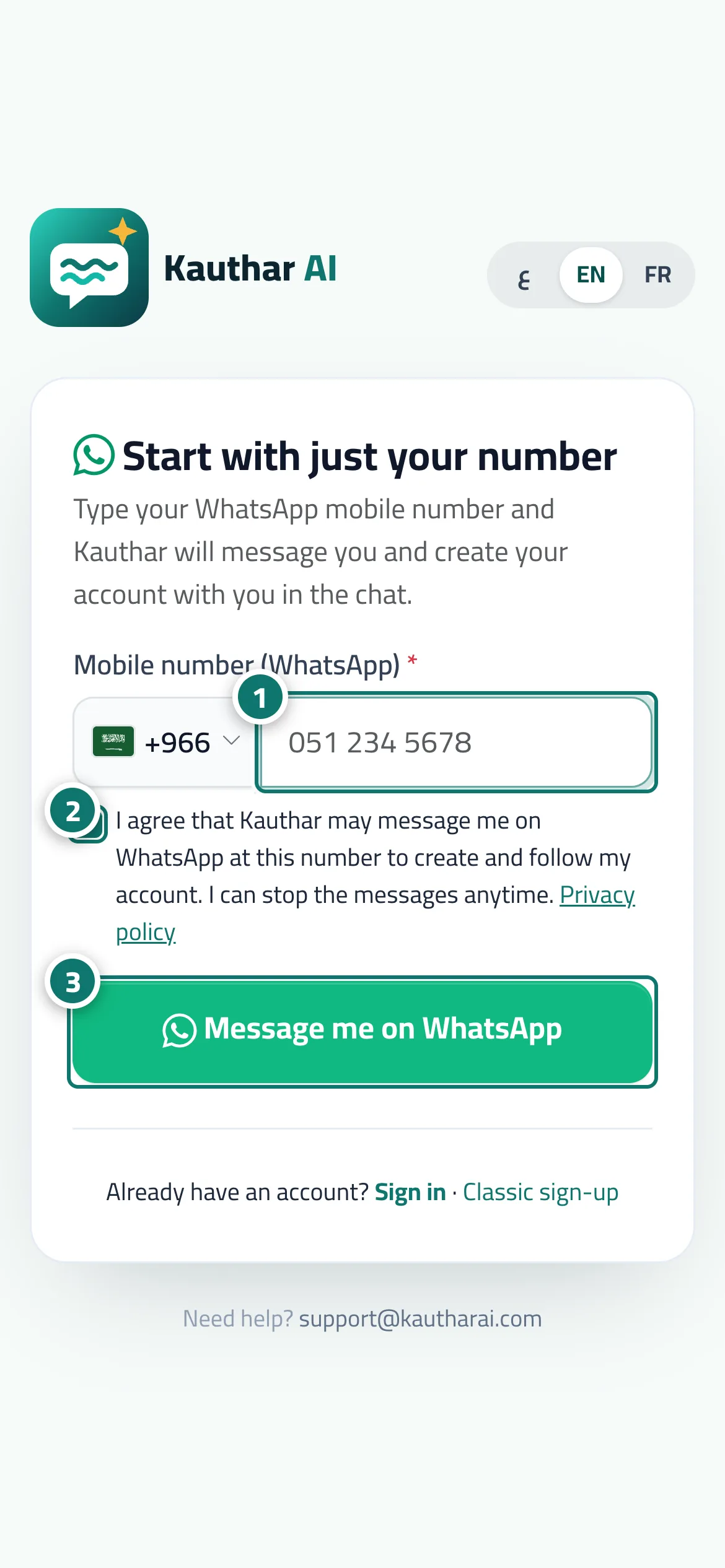
The Start with just your number page asks for your WhatsApp mobile number and your consent to be messaged there. After Message me on WhatsApp you get a message from Kauthar's official number; replying proves your number with no code screen, then Kauthar asks your name and business and creates the account in the chat. Then the setup continues step by step (skip and come back any time): the services you want, connecting channels (a one-time sign-in link to the connect page — your own business WhatsApp number), your website, your files (Excel, text, photos or voice), working hours, today's and this week's appointments with a confirmation for each, then Try testing me to ask Kauthar as a customer would, and finally Here is what I understood about you — right?. Afterwards you run your account from WhatsApp with menus (see Manage your account from WhatsApp).
- Who can use it
- Any new business owner
- Where to find it
- Kauthar website → Start with just your number (or from the sign-up page)
Step by step#
- Choose the country and type your WhatsApp mobile number.
- Agree that Kauthar may message you on WhatsApp on this number.
- Press Message me on WhatsApp, then answer Kauthar's message in WhatsApp to continue there.