
Conversation reports
Your most frequent questions, answer rate, peak times and most-used files, for any period you choose.
Overview#
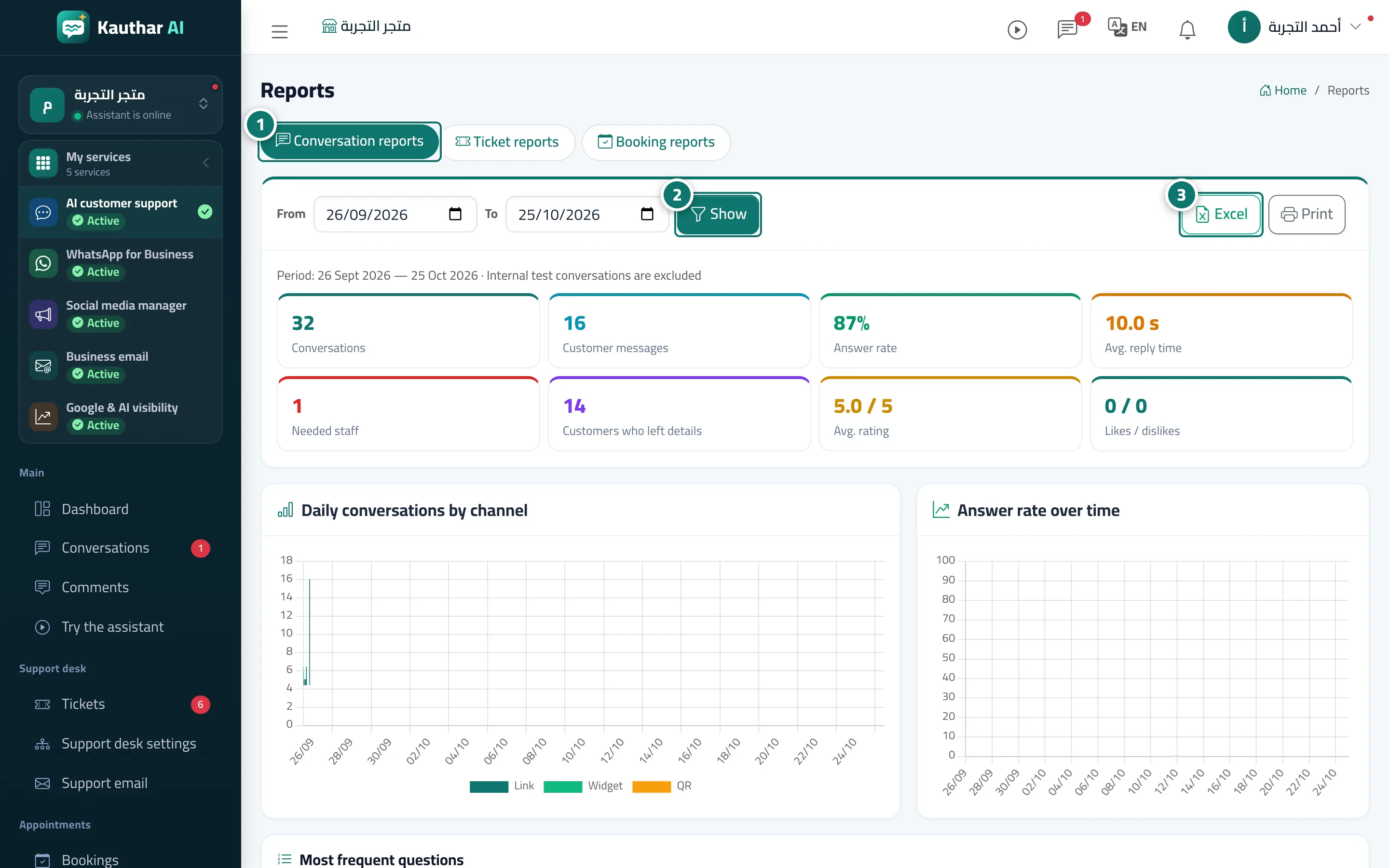
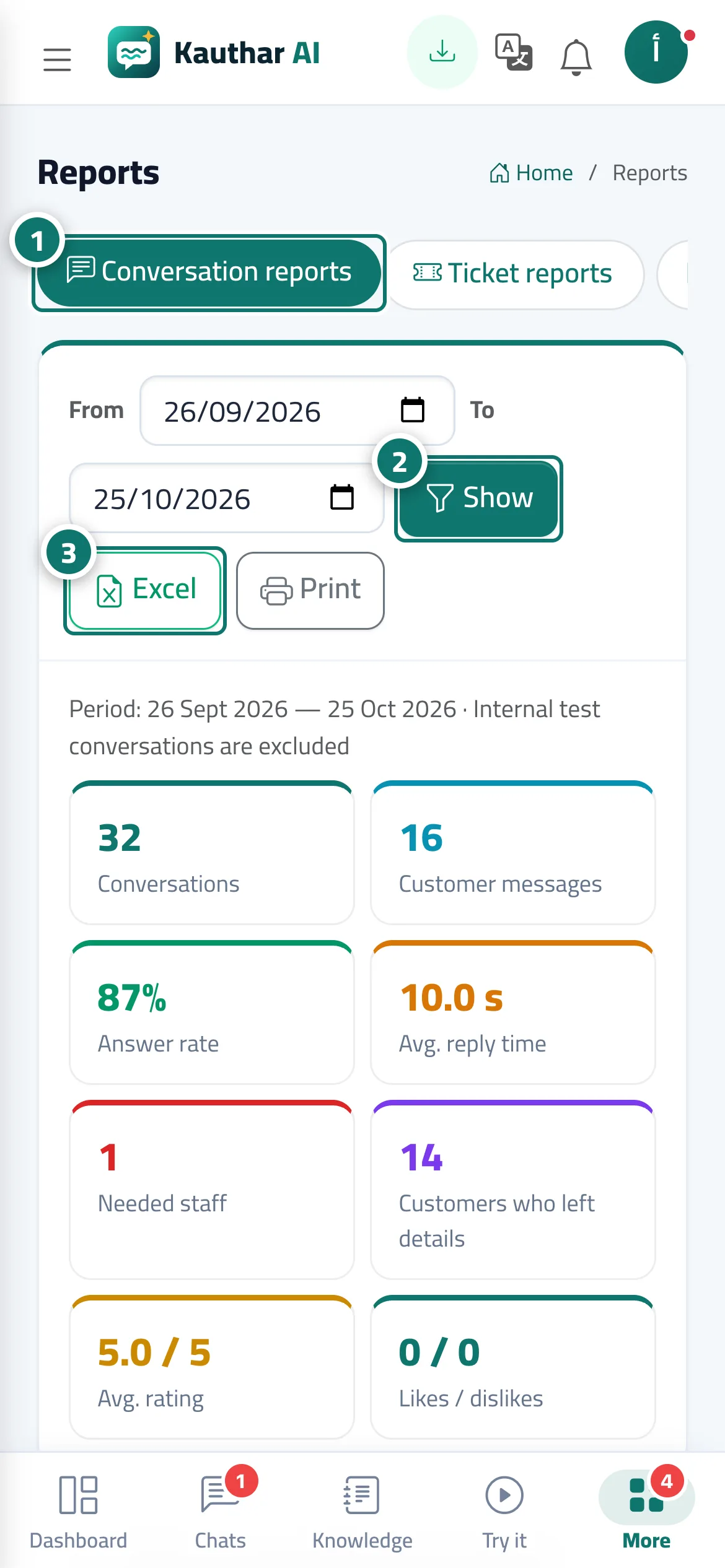
A report for the period you choose showing: Conversations, Customer messages, Answer rate, Avg. reply time, Needed staff, Customers who left their details, Avg. rating and Likes / dislikes. With charts — Daily conversations by channel, Answer rate over time and Ratings breakdown — and tables: Most frequent questions, Most unanswered questions with a Train the assistant button, Peak times by day and hour, Files used most in answers and Customer satisfaction; and when WhatsApp is connected, the tables WhatsApp by number (conversations and customer messages per number) and WhatsApp button taps (from the website, from the channels and to external numbers). This tab is available on every plan.
- Who can use it
- Business owner / manager
- Where to find it
- Sidebar → Channels & customers → Reports → Conversation reports tab
Step by step#
- Open Reports; the Conversation reports tab appears first.
- Choose From and To and click View.
- Export the report with Excel or Print (A4 paper).
Tips#
Good to know#
Frequently asked questions#
What does Avg. reply time mean?
The average time the assistant takes to prepare its reply. Buttons and fixed answers make replies faster.
Can I send the report to my business partner?
Yes — print it or save it as a PDF from Print, or download it with Excel.