Recipe: leads in Google Sheets
Every new lead becomes a row in a Google Sheets spreadsheet: time, name, phone, channel, message and a link to the conversation.
On this page
Overview#
A ready n8n recipe (kauthar-leads-to-google-sheets.json) with two nodes: Kauthar AI Trigger on New lead with the simplified output, and Google Sheets → Append row with the columns Time, Name, Phone, Channel, Message, Link.
- Who can use it
- Business owner / admin
- Where to find it
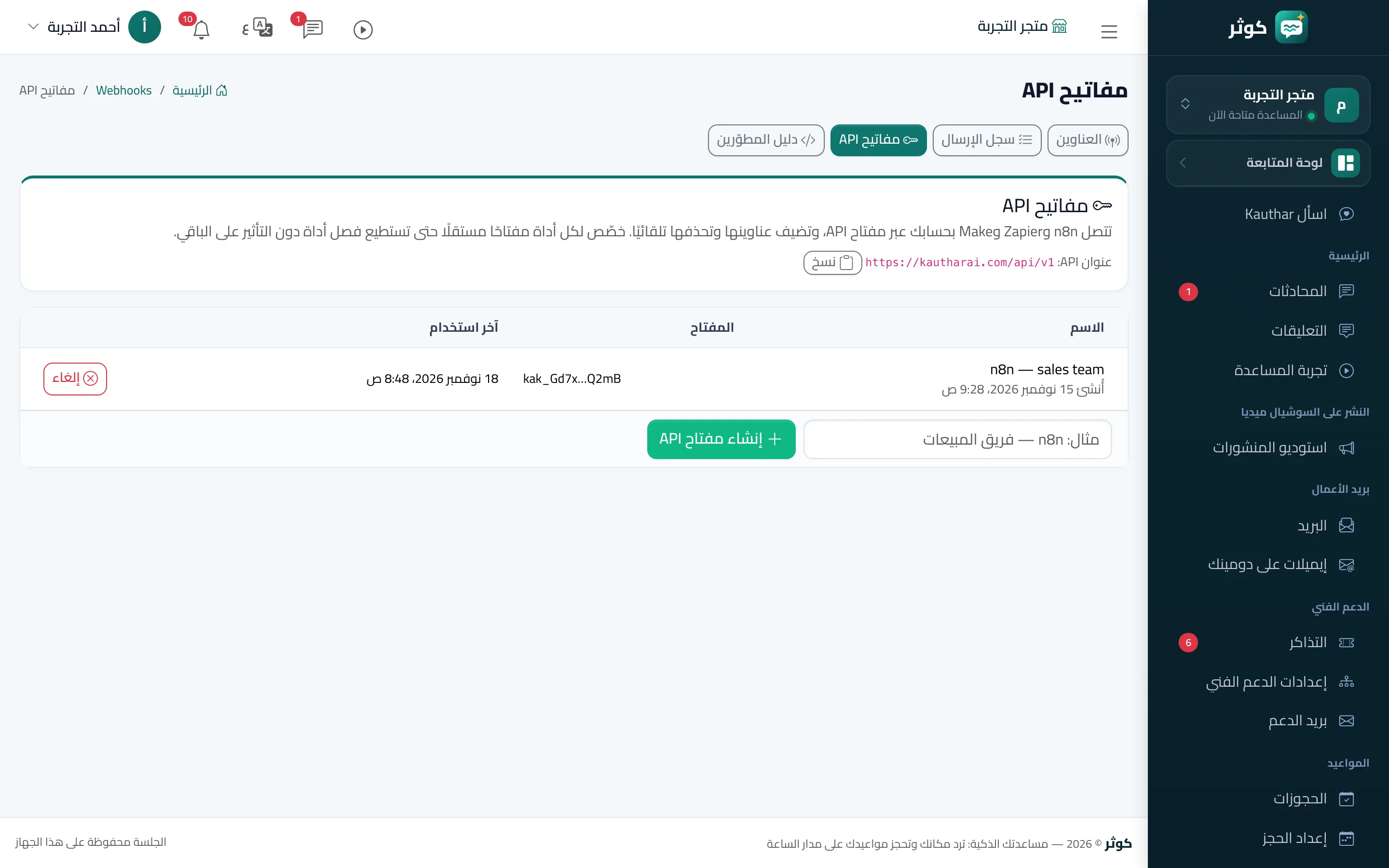
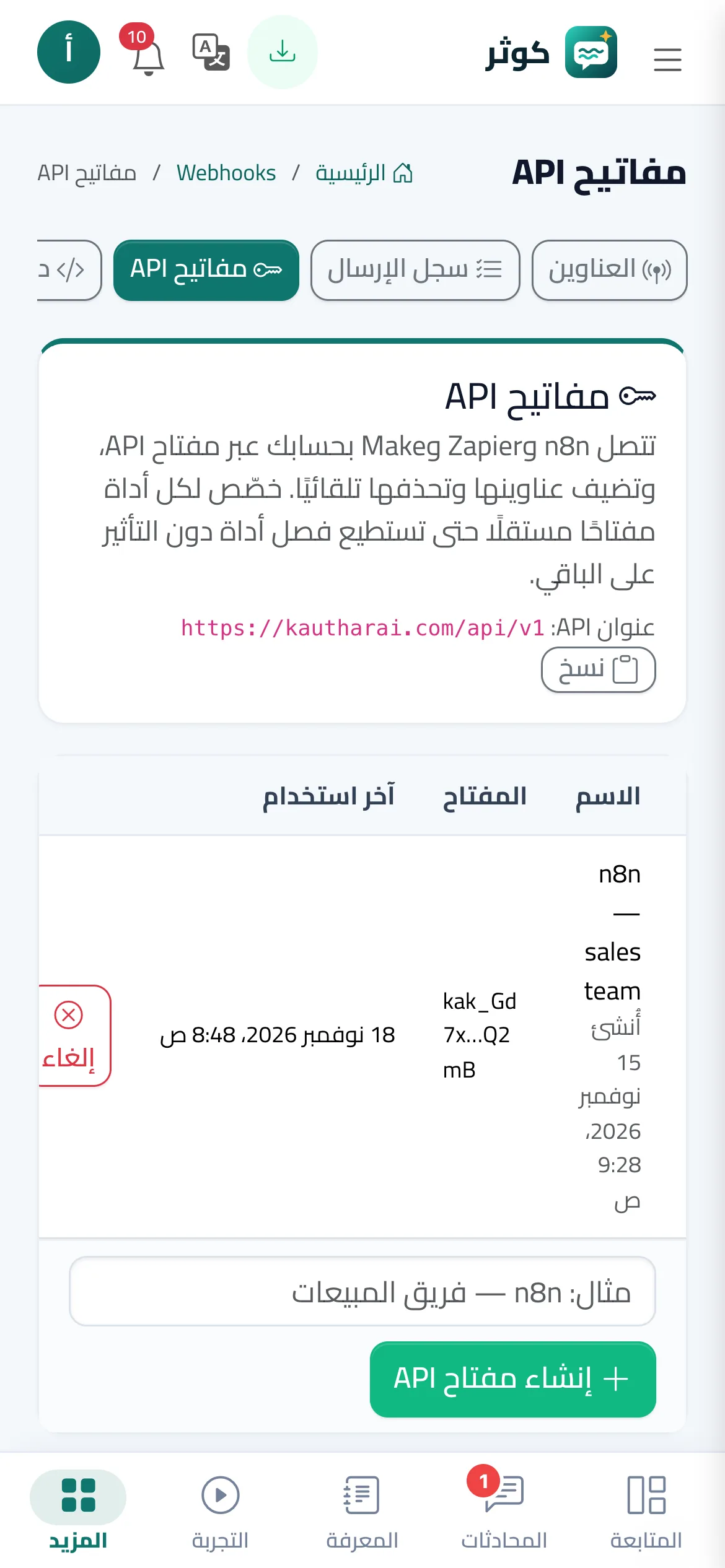
- Webhooks → n8n
Step by step#
- Create a Google Sheets spreadsheet with the headers Time, Name, Phone, Channel, Message, Link in the first row.
- In n8n choose Import from file and open the recipe, then pick the Kauthar AI API credential in the Kauthar AI Trigger node.
- In the Google Sheets node connect your account and choose the spreadsheet and sheet.
- Activate the workflow, then press Send test event on the n8n endpoint in the Webhooks screen and check the new row.